Search and Filter the Punch List (iOS)
Things to Consider
Required User Permissions:
'Read Only' level permissions or higher on the project's Punch List tool.
Additional Information:
Any search or filter parameters that you applied will remain until you reset them.
The search tool respects any selected filter parameters and will only search for items within the filtered results.
The new view and workflow now applies to both Purchase Orders and Subcontracts.
Details like descriptions, inclusions, and exclusions can be expanded or collapsed to keep the view clean.
Schedule of Values and Change Orders are now organized into independent subtabs, reducing the need for excessive scrolling.
Attachments are displayed at the top of the commitment for quick access.
This item can be viewed or edited offline if it was previously viewed and cached on your mobile device. Tasks performed in offline mode sync with Procore once a network connection is reestablished.
Steps
Navigate to the project's Punch List tool using the Procore app on an iOS mobile device.
Follow the steps below:
To Search the Punch List
Tap the Search
 icon.
icon.Enter a keyword or phrase into the search bar.
Note: The following fields are searched for the specified keyword terms:Attachment
Comments
Description
Name
Reference
Location
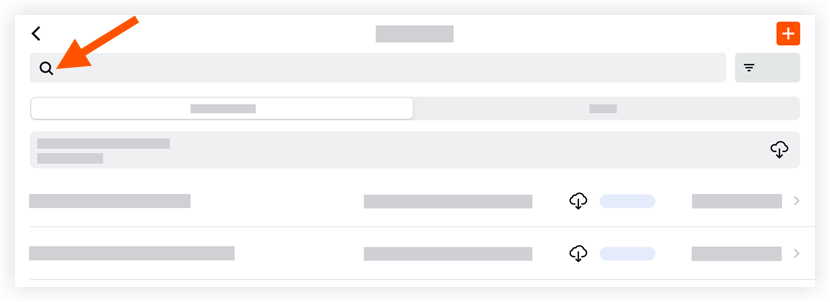
Tap an item to view its details.
To Filter the Punch List
Tap the Filter
 icon.
icon.
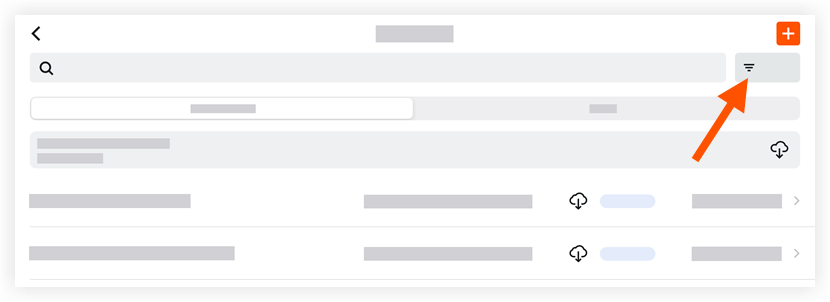
Tap the filters you want to apply from the following list:
Status
Assignee Response
Ball-In-Court
Created By
Punch Item Manager
Assignee
Distribution
Assignee's Company
Final Approver
Location
Type
Priority
Trade
Due Date
Tap Apply.
Note: This reveals a list of items that match the applied filters.To reset the filters:
Tap Filter.
Tap Reset All Filters.
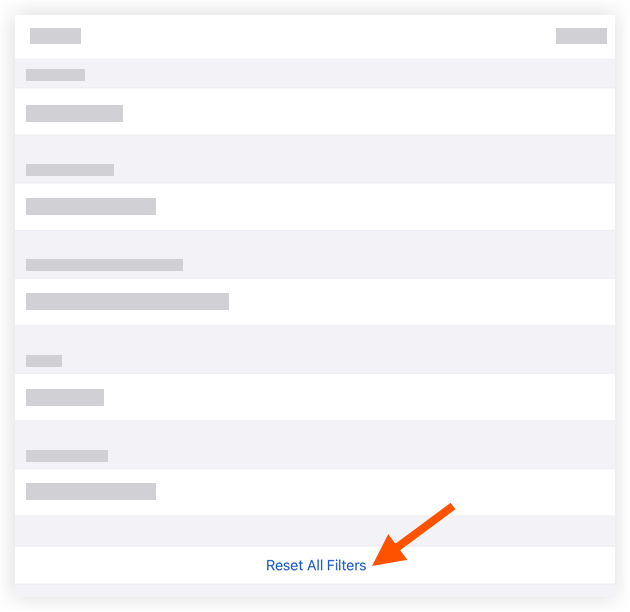
Tap Apply.
See Also
Loading related articles...