Search and Filter the Punch List
Things to Consider
Required User Permissions:
'Read Only' level permissions or higher on the project's Punch List tool.
Additional Information:
Any search or filter parameters that you applied will remain until you reset them.
The search tool respects any selected filter parameters and will only search for items within the filtered results.
Steps
To Search for Punch List Items
Navigate to the project's Punch List tool.
Click into the Search bar and Enter a word or phrase in the Search bar. The following fields are searched for the specified keyword terms:
Number
Title
Reference
Description
Type
Assignee Company
Assignee Name
Location
Click Search.
To Filter Punch List Items
Click the "Add Filter" drop-down menu. and choose from the options in the drop-down menu.
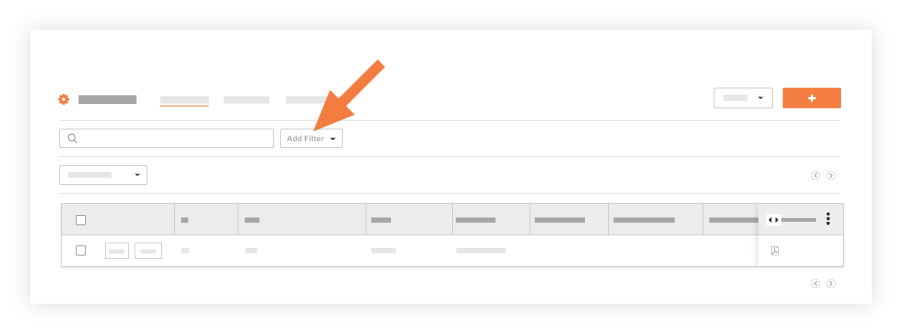
The following filters can be applied and combined with each other to narrow down results.
Assignee
Assignee Company
Due Date* Overdue
Date Created
Date Closed
Location
Note: See How do I filter by multi-tiered locations?.Priority
Response Status
Creator
Status
Trade
Type
Note: You will only see types in the Type drop-down if you have added types to your Punch List tool. To add Punch item Types, see Configure Advanced Settings: Punch List.
See Also
Loading related articles...