Login Troubleshooting (iOS)

Answer

If you are having trouble logging into the iOS Procore Mobile App, locate the error you are receiving and follow the relevant steps.

No Error

Upon entering your email address and/or password, you are routed to the login screen again with no error. Ensure that date and time are set automatically for your device.

SS - iOS Login Error - No Error

Show /Hide Steps

  1. Open the Settings app on your iOS device.

  2. Tap General.

  3. Tap Date & Time.

  4. Tap the Set Automatically setting to the ON position.

  5. Refresh the Procore Mobile app.

    • Click the refresh Icon - Refresh App icon.

    • Force close and reopen the app.

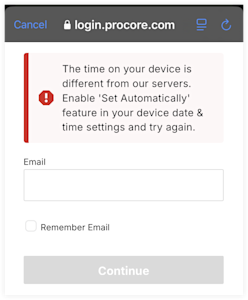
Error: "The Time on Your Device is Different from Our Servers."

Ensure that date and time are set automatically for your device.

SS - iOS Login Error - The time on your device is different from our servers

Show /Hide Steps

  1. Open the Settings app on your iOS device.

  2. Tap General.

  3. Tap Date & Time.

  4. Tap the Set Automatically setting to the ON position.

  5. Refresh the Procore Mobile app.

    • Click the refresh Icon - Refresh App icon.

    • Force close and reopen the app.

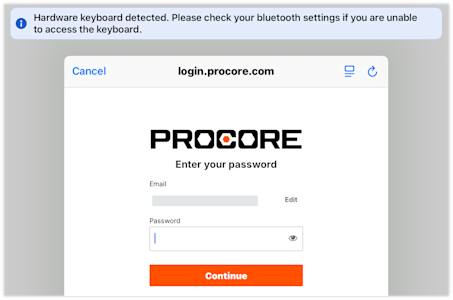
Keyboard Not Displaying for Login

If you have a bluetooth keyboard connected to your iPad, the OS automatically disables the onscreen keyboard. Sometimes a bluetooth keyboard is nearby and still connected. Disconnect your keyboard.

SS - iOS Login Error - No Keyboard

Show /Hide Steps

  1. Open the Settings app on your iOS device.

  2. Tap Bluetooth.

  3. Tap the information icon-info.png icon for the keyboard in the 'My Devices' list.

  4. Tap Disconnect.

Login Screen Not Visible

Upon entering your email address and/or password, the login screen closes out. Update your device's content filter.

SS - iOS Login Error - Content Filter

Show /Hide Steps

  1. Open the Settings app on your iOS device.

  2. Tap General.

  3. Tap VPN and Device Management

  4. Tap Restrictions and Proxies.

  5. Update your settings to ensure that your device connect directly to any procore.com subdomain.

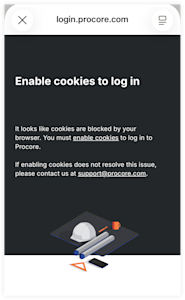
Error: "Enable Cookies to Log In"

This is likely due to having cookies blocked in Safari. Update your Safari settings.

SS - iOS Login Error - Enable Cookies to Login

Show /Hide Steps

  1. Open the Settings app on your iOS device.

  2. Tap Apps.

  3. Tap Safari.

  4. Tap Advanced.

  5. Tap the Block All Cookies toggle OFF.

  6. Force close the Safari app.

  7. Refresh the Procore Mobile app.

    • Click the refresh Icon - Refresh App icon.

    • Force close and reopen the app.

  8. If you continue to receive the error, restart your device.

See Also

Loading related articles...