Configure SP-Initiated SSO for Procore in Microsoft Entra ID

Microsoft Azure Active Directory is now Microsoft Entra ID

While you may still see its former name in some screenshots or steps, it does not affect the instructions in this guide.

 Notes
  • To complete setup, you will need to gather these parameters from your Microsoft Entra ID Enterprise application configuration: Show/Hide Details

    You will need these three details to complete setup:

    Field Name

    Description

    Entra ID Field Equivalent

    SSO Issuer URL

    Unique identifier for your Identity Provider (IdP)

    Microsoft Entra Identifier

    SSO Target URL

    Endpoint where authentication requests are sent (optional for IdP-initiated SSO)

    Login URL

    SSO x509 Certificate

    Public key certificate used to sign SAML assertions

    Base64-encoded Certificate (.cer or .pem)

  • If you use Portfolio Financials and Capital Planning in Procore, contact your Procore point of contact or Contact Support for assistance with Microsoft Entra ID setup.

Background

Understanding Single Sign-On (SSO) terminology is key to configuring your integration correctly. Depending on your organization's setup, users can log in by starting at Procore (SP-initiated) or by clicking a tile in your corporate dashboard (IdP-initiated).

To learn some key SSO terms Show/Hide Details

Term

SP-Initiated Context

IdP-Initiated Context

Identity Provider (IdP)

Authenticates the user after receiving a request from Procore.

Authenticates the user directly within the IdP portal and initiates the session.

Service Provider (SP)

Procore—initiates the login request and consumes the returned assertion.

Procore—receives and validates the unsolicited assertion from the IdP.

Issuer URL (Entity ID)

Identifies Procore as the entity requesting authentication.

Identifies your IdP as the entity issuing the authentication assertion.

Target URL

The IdP endpoint where Procore sends the SAML AuthnRequest.

The IdP app tile/launch URL that routes the user directly to Procore.

SAML

Protocol used to pass requests to the IdP and assertions back to Procore.

Protocol used to push pre-generated authentication assertions directly to Procore.

X.509 Certificate

Verifies signatures on both outgoing requests and incoming assertions.

Verifies the IdP's digital signature on the incoming authentication assertion.

If your company uses Microsoft Entra ID to manage user logins to Procore, support is available for both Single Sign-On (SSO) authentication flows:

Authentication Flow

How It Works

Configuration

SP-Initiated SSO

Users navigate to the Procore login page, which redirects to Microsoft Entra ID for authentication before granting access.

Follow the Steps below.

IdP-Initiated SSO

Users log into their Microsoft Entra ID portal and launch Procore directly by clicking the application tile.

Things to Consider

Steps

Important Requirement for Successful SSO

A user's Microsoft Entra ID primary email address must match their Procore login email address. To update a primary email address or alias to match Procore, follow the Microsoft documentation to Change a user name and email address.

  • Step 1: Add Procore as a New Enterprise Application in Azure AD

  • Step 2: Configure the Procore Enterprise Application's SSO Settings

  • Step 3: Add the Azure AD Settings to Procore's Company Level Admin Tool

Step 1: Add Procore as a New Enterprise Application in Azure AD


  1. Log in to the Azure AD portal as a Global Administrator: http://portal.azure.com.Demo Azure Add Procore

  2. Under Favorites, click Azure Active Directory.

  3. Under Manage, click Enterprise Applications.

  4. Click +New Application.

  5. Under Add from the Gallery, type the following in the Enter a Name box: Procore.

  6. Click the matching application named Procore.
    This reveals a new pane.

  7. In the Name box, type a name for your application.
    Note: In the example above, we named our application: Procore (Demo)

  8. Click Add.
    A message appears to confirm that the application was added successfully. You should now be viewing your new Procore enterprise application's Overview page.

Step 2: Configure the Procore Enterprise Application's SSO Settings

  1. In the Overview page for your new enterprise application, under Manage, click Single Sign-On.Demo Basic Saml Config

  2. In the Single Sign-on Mode page, click SAML.
    This opens the Set Up Single Sign-On with SAML - Preview page.

  3. Under Basic SAML Configuration, click Edit.
    This opens the Basic SAML Configuration window.

  4. Under the Basic SAML Configuration page, do the following:

    • Identifier (Entity ID)
      Change the value from: <https://app.procore.com> to: <https://login.procore.com>
      Note: If you are using Portfolio Financials and Capital Planning, enter the following value instead:[https://www.honestbuildings.com/pfcp/app/#!/login](https://login.procore.com "https://login.procore.com")

      SSO Content Reuse

       Optional - Unique Entity ID

      When configuring SSO for a single Procore instance, you should NOT check this box.

      If your company licenses more than one Procore instance, and you want to configure unique Procore enterprise applications within your IdP tenant for each instance, you can by enabling Unique Entity ID. If enabled, you are still limited to one (1) enterprise application per Procore company instance.

      Important: SSO for Procore targets users by email domain. An email domain can only be targeted once in all of Procore, so if you're considering setting up SSO with Unique Entity IDs across multiple Procore instances, remember that you can only target an email domain once, in a single instance.

      To generate a Unique Entity ID for an enterprise application, check the Enable Unique Entity ID box in the Procore Admin tool's SSO configuration page for the Procore instance you want to specify on an enterprise application. Checking this box will generate a unique Entity ID URL in the field below, which you will then copy and paste into the appropriate Entity ID field in your IdP's configuration page.

      Notes: You must save your configuration with the box checked to generate the Unique Entity ID. Enabling this feature does not impact user membership or access to a given instance. Access to a company in Procore is determined by a user's presence in the Directory tool, and their configured permissions within Procore. Auto-provisioning with SSO is not supported at this time.

      Sso Unique Entity Id

    • Sign On URL
      Leave this field blank. You do NOT need to enter a value in this field.

    • Reply URL (Assertion Consumer Service URL)
      Enter the following: <https://login.procore.com/saml/consume>

  5. Click Save.
    A message appears to confirm that your settings were saved successfully.

  6. Click the 'x' to close the Basic SAML Configuration page.

  7. Under SAML Signing Certificate, click the Download link for the Certificate (Base64) file.
    Notes:

    • This downloads a file named PublicCertificate.cer to your browser's specified download area.

    • Open the file in a text editor and leave it open on your computer. Later, you will copy the code that appears between the ---BEGIN CERTIFICATE--- and ---END CERTIFICATE-- tags into Procore.

Step 3: Add the Azure AD Settings to Procore's Company Level Admin Tool

  1. Leave the Azure AD page open as described in the previous step.

  2. Log into Procore using your Procore Administrator account.

  3. Navigate to the Company level Admin tool.

  4. Under Company Settings, click Single Sign On Configuration.

  5. Leave Procore's 'Single Sign On Configuration' page open.

  6. Go to the Azure AD page that you left open.

  7. Under Set Up [Your Application Name], click View Step-by-Step Instructions.
    This opens the Configure Sign-On page.

    Copy this information from Azure AD…

    Paste it into this field in Procore…

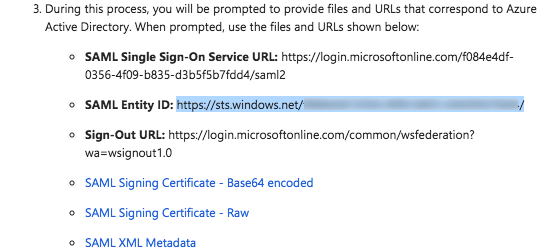
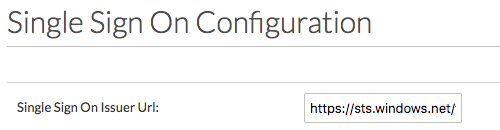
    SAML Entity ID Copy the URL in this field from Azure AD.

    Single Sign On Issuer URL Paste the SAML Entity ID URL into the Single Sign On Issuer URL field.

    Saml Entity Id

    Issuer Url

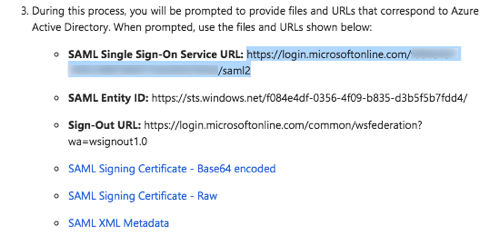
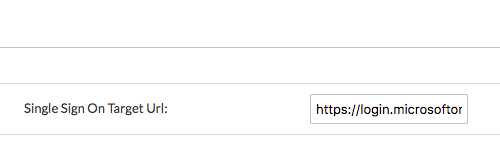
    SAML Single Sign-On Service URL Copy the URL in this field from Azure AD.

    Single Sign On Target URL Paste the SAML Single Sign-On Service URL into the Single Sign On Target URL field.

    Saml Sso Service Url

    Sso Target Url

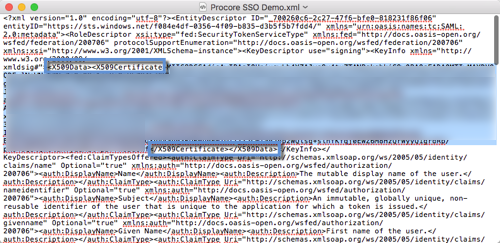
    SAML XML Metadata Download this file to your computer and open it in a text editor (i.e., Notepad or Text/Edit). Locate the certificate data that appears between the HTML start and end tags for the x509 certificate. Then copy the data. Do NOT copy the tags. This is depicted in the animated image above: Start Tag: End Tag:

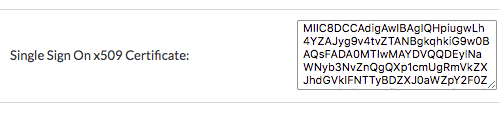
    Single Sign On x509 Certificate Paste the certificate data you copied into this field.

    Xml Certificate

    Sso X509

  8. On the 'Single Sign On Configuration' page in Procore, click Save Changes.

  9. Reach out to Procore Support or your company's Procore point of contact to request that they configure the email domain(s) you'd like to target for SSO.

  10. After you receive confirmation that the SSO configuration is ready, mark the Enable Single Sign On checkbox on the 'Single Sign On Configuration' page.

  11. Select the Service Provider Forward option.

  12. Click Save Changes.

See Also

Loading related articles...