Import a Subcontractor Schedule of Values from a CSV
Background
In the same way that you can invite an invoice contact to submit a subcontractor invoice for review, you can also invite an invoice contact to provide a more detailed breakdown of line items on the 'Schedule of Values' tab by enabling the 'Subcontractor SOV' tab on a commitment including import from a CSV.
On the general 'Schedule of Values' tab for a commitment, each line item is assigned to a specific cost code and cost type.
On the 'Subcontractor SOV' tab on a commitment, you may be asked to provide a more detailed breakdown of a line item on the 'Schedule of Values' tab. This may be required to provide a more full explanation about the amounts to obtain approval on an invoice.
Values can be entered manually or via CSV import in bulk.
Things to Consider
Limitations:
If a commitment is using the Unit/Quantity Based accounting method, adding the Subcontractor SOV is not supported. See How do I set the accounting method for a contract or funding?
You must be using the modernized Commitments experience.
Additional Information:
On the 'Contract Privacy' card, you must select your collaborator's user name in the 'Invoice Contact' fields before your collaborator can see the SOV.* Only the detail line items added on the Subcontractor SOV tab does not carry over to the invoice.* For companies using the ERP Integrations tool, the Subcontractor SOV line items that you create do NOT sync with your integrated ERP system.
Steps
Customize the Delimiter & Download a Blank Template
Add Line Items to the Blank Template
Import the Complete Template to Procore
Customize the Delimiter & Download a Blank Template
Navigate to the project's Commitments tool.
Under the Contracts tab, click the Number link for the commitment to open.
Click the Subcontractor Schedule of Values tab.
Click Edit SSOV.
At the bottom of the Subcontractor Schedule of Values page, click Import CSV.
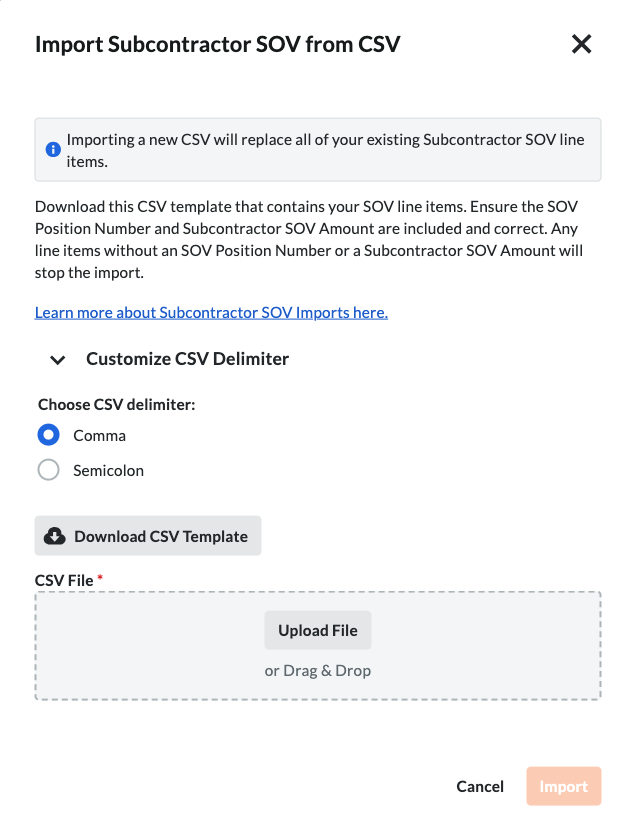
In the Import Subcontractor SOV from CSV window, choose these options:
Click Customize CSV Delimiter to reveal the options.
Under Choose CSV Delimiter, choose one of these options:
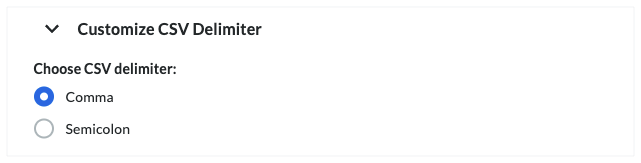
Comma. Separates data using a comma (,). This the default option.
Semicolon. Separates data using a semicolon (;).
Tip
What is a delimiter? A delimiter is a character used to separate values or text strings. It marks both the beginning and end of a unit of data.
Click the Download CSV Template button.
Procore downloads a template file including the existing SOV line items and the associated information such as Position Number, Budget Code, SOV Amount, SOV Description.
Add Line Items to the CSV Template
On your computer, open the template that you just downloaded.
Ensure the SOV Position Number and Subcontractor SOV Amount are included and correct.
Important
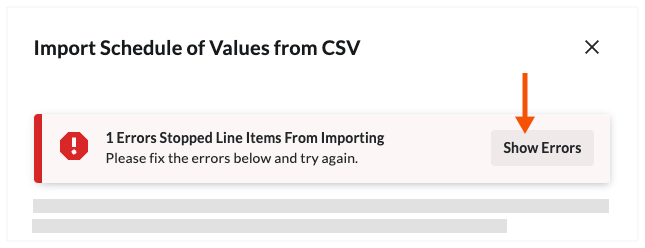
Any line items without an SOV Position Number or SOV Amount stops the import.