Submit a Field-Initiated Change Order as a Collaborator
Background
If the company that hired you to work on their project has granted you the appropriate access permissions to create a Commitment Change Order (or Potential Change Order for two and three-tier Change Orders) on your contract in their Procore company account, use the Steps below.
Things to Consider
Required User Permissions:
'Standard' level permissions on the Commitments tool. See What granular permissions are available for the project's Change Orders tool?
Granular permissions are only required to add/edit SOV line items.
Project-level tool settings:
The Enable Field-Initiated Change Orders and Allow Standard Level Users to Create Change Orders settings must be enabled in the Commitments tool configuration.
Limitations:
Standard users can only edit change orders they have created. To edit change orders created by others (including Admins), a Standard user's permission level must be increased to Admin.
Steps
Navigate to the project's Commitments tool.
Locate the affected contract in the Commitments table. The contract must be in the 'Approved' status.
Click the contract's Number link to open it.
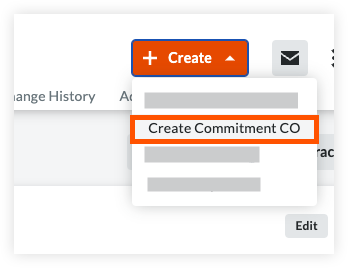
Click Create.
Click Create Commitment CO.
In the New Commitment Change Order page, enter the following information:
Number (#)
Procore automatically assigns the CCO numbers in sequential order. By default, numbers are assigned as 001, 002, 002, and so on. You can manually override this by typing over the number if desired.Date Created
Procore automatically adds this date and timestamp.Revision
When you first create a CCO, the revision number is zero (0). As reviewers provide feedback, a CCO may be subsequently revised.Created By
Procore automatically adds your name to this field.Contract Company
Procore automatically adds your company's name to this field using the data in the contract.Contract
Procore automatically links the contract your change order is associated with in this field.Title
Procore automatically lists (none) in this field. You cannot change this value. To learn more, see What is the maximum character length for a commitment's 'Title'?
Note: This field is only available when two or three-tier commitments are enabled.Status
Procore automatically places the new CCO into the 'Draft' status. To learn more, see What are the default statuses for change orders in Procore?Private
Procore automatically checks this box to keep the CCO private and confidential.Change Reasons
Select one of the options from the drop-down list. The options in this list are managed by the Procore company account holder. To learn about Procore's default change reasons, see What are Procore's default change types and change reasons?Due Date
Select the date by which the change order must be completed.Invoiced Date
Record the date the invoice for this change order was issued.Paid Date
Note the date the payment for this change order was settled.Designated Reviewer
Choose the person responsible for the initial review of this change.Request Received From
Select a Procore project user who requested the change from this list.Reviewer
Select the individual who performed the final review.Review Date
Choose the date the review process was finished.Description
Enter a description of the change in this box.Executed
Check this box if the change order is legally signed and finalized.Signed Change Order Received Date
Select the date you received the fully signed document.Schedule Impact
If known, enter an approximate number of additional days that the proposed change would add to the project's current schedule.Location
Identify the specific area of the job site affected by this change.Reference
Enter any other relevant information in this box. For example, tools materials, or documents that are related to the CCO.Field Change
Mark this checkbox if the CCO requires a field change. A field change is any modification to the construction project that deviates from the original architectural plans.Paid in Full
Mark this checkbox if the costs that you plan to enter on the SOV are already covered in the Procore account holder's budget.Attachments
Click Attach Files or use a drag-and-drop operation to attach any relevant files to the CCO.Total Amount
Enter the total cost or credit value of the change order.
Click the Create and Enter SOV button.
This opens the Schedule of Values tab.
Add the SOV Line Items
Under the Schedule of Values tab, click Add Line.
Complete the data entry as follows:
Budget Code
Select a budget code from the In Contract options. To use budget codes that are Out of Contract, your user account must be granted edit access to the contract's Schedule of Values (SOV) with the following granular permissions: Update Work Order Contract and Update Purchase Order Contract.Description
Enter a description for the line item.Qty
Enter the number of units.UOM
Select the Unit of Measure (UOM) from the list. See Which units of measure are included on Procore's master list?Amount
The system automatically calculates the subtotal for you, based on the Qty, UOM, and Unit Cost entries.
Repeat the above steps for all line items that you need to add to the CCO.
Click Save.
This saves your CCO in Procore as an Open change event.
See Also
Loading related articles...