Delete Prime Contracts (Beta)
In Beta
This content is for participants in the Project Financials: Modernized Experience for Prime Contracts beta program.
This content is for participants in the Project Financials: Modernized Experience for Prime Contracts beta program.
Typically, most project users will only want to delete a prime contract from a Procore project before it is placed into the 'Approved' status and before your project team starts creating Prime Contract Change Orders (PCCOs).
Required User Permissions:
'Admin' level permissions on the project's Prime Contracts tool.
OR
'Read Only' or 'Standard' level permissions on the project's Prime Contracts tool with the 'Delete Prime Contract' granular permission enabled on your permission template.
Additional Information:
You cannot delete a contract in the 'Approved' status.
You cannot delete a contract if your team has created any change orders.
Deleting a prime contract permanently removes it from Procore. This includes its Schedule of Values (SOV) and all line items.
If the contract links to other Procore items created or stored in other tools (such as a purchase order, subcontract, document, and so on) the links are also removed.
A deleted prime contract cannot be retrieved, restored, or recovered by you or by Procore.
Navigate to the project's Prime Contracts tool.
Locate the contract to delete. Then click its Number link to open it.
In the top-right corner of the page, click the vertical ellipsis and choose Delete Contract.
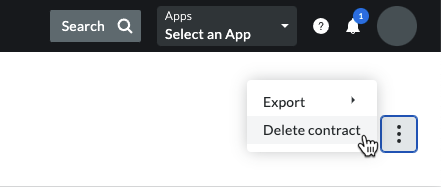
If the Delete Contract option is grayed out and unavailable, hover your mouse cursor over the tooltip to learn why. Typically, this only occurs when the following is true:
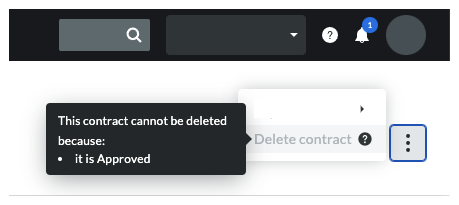
The prime contract is in the 'Approved' status.
The prime contract has one or more Prime Contract Change Orders (PCCOs). You must always delete PCCOs before you can delete a prime contract. See Delete a Prime Contract Change Order (PCCO).
An owner invoice has been created for the prime contract. See Create Owner Invoices.
Click Confirm in the confirmation window.
Loading related articles...