Respond to a Forwarded Submittal as a Reviewer
Background
When a user who has been defined as a member of a submittal workflow (see About Submittal Workflow) wants you to review a submittal before they submit their response, they have the option to forward the submittal to you for review. This gives the individual responsible for taking the next action an opportunity to ensure that the submittal is reviewed by key individuals with specialized knowledge. It also helps to ensure that a response from all key decision makers has been captured in the Procore application, to ensure that your project team keeps an accurate audit trail of all submittal approvals.
If a submittal is forwarded to you for a review, you will receive an email and an in-app notification card (accessed via the Notification Bell) stating that a submittal has been forwarded to you. It will also note that the submittal's 'Ball In Court' person has been shifted to you. To submit a response, you can select the notification card to open the submittal directly, or navigate to the project's Submittals tool.
Things to Consider
Required User Permissions:
To be forwarded a submittal for review, 'Standard' level permissions or higher to the project's Submittals tool.
Additional Information:
The submittal's status must be 'Open'.
Prerequisites
Optional: Review Submittal PDF Attachments
Steps
Choose one of these options:
Navigate to the project's Submittals tool, locate the submittal that was forwarded to you, and click View.
Navigate to the project's Home page, locate the submittal in the My Open Items area, and then click the submittal to view it.
Select the Notification Bell icon in the top navigation header and click the Submittal notification card to open the item directly.
Review the submittal's information and any included attachments.
NoteAny PDF attachments that you added markups to in Procore will be included with your response automatically. See Review Submittal PDF Attachments.
Click Respond next to your name in the 'Submittal Workflow' table.

Optional: Attach any additional files to include with your response. Do one of the following:
Click Attach File(s) to add files from other Procore tools or from your computer.
Locate and select (or upload) the files you want to include using the My Computer, Photos, Documents, or Forms options. The options you see may vary based on your user permissions on the project.
Click Attach.
Drag and drop files from your computer.

Click Next.
Add the following information:
Response. Select the appropriate response from the dropdown menu.
Comments. Optional. Enter any comments to include with the response.
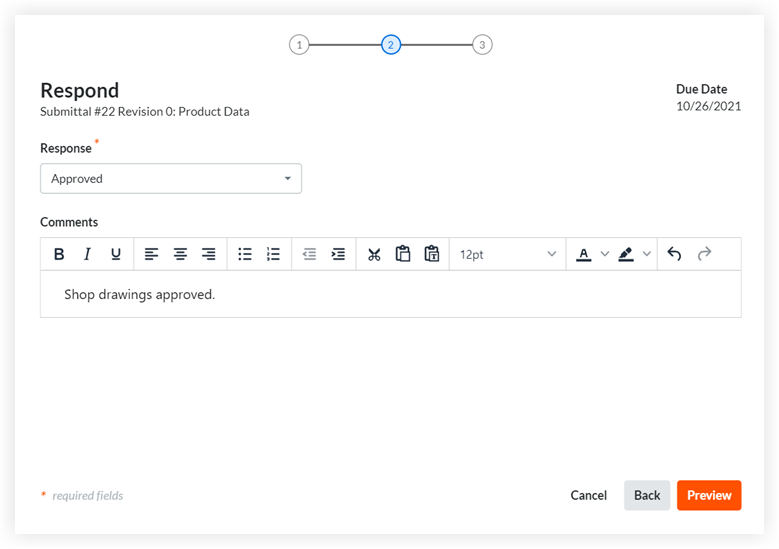

Click Preview.
Preview the information.
If there's another step in the submittal's workflow, the user's name or group of users' names in the next step will display in the 'Next in Workflow' field.
