Set a Bid Board Project as a Template
Things to Consider
Required User Permissions for the Bid Board tool.
Required User Permissions for the Portfolio Planning tool.
See a list of what information gets copied to a new project from a Bid Board template.
Bid Board Templates
Steps
Set a project as a template
Navigate to the Bid Board or Portfolio Planning tool.
Locate the project you want to set as a template.
Click the project name to open it.
Note: You can set the project as a template from any of the sections on this page.Click the vertical ellipsis
 icon at the top of the page.
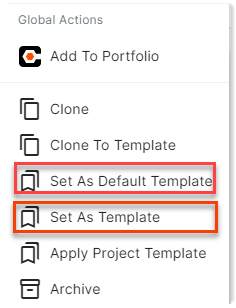
Select Set As Template or Set As Default Template.
A green bar will show at the bottom of the screen to confirm the project was successfully set as template.
Unset a project as a template
Navigate to the Bid Board tool in Procore.
Locate the project you want to remove as a template.
Click the project name to open it.
Click the vertical ellipsis
icon at the top of the page.Select Unset As Default Template or Unset As Template
A green bar will show at the bottom of the screen to confirm the project was successfully unset as a template.
See Also
Loading related articles...