View a Commitment's Schedule of Values (SOV) (Android)
Things to Consider
Required User Permissions:
'Admin' level permissions on the project's Commitments tool.
OR'Read Only' and 'Standard' level permissions can only view commitments that they have been granted access via the privacy drop-down menu when editing or creating a commitment.
OR'Read Only' or 'Standard' level permissions on the project's Commitments tool with the 'View Private Purchase Order Contract' granular permission enabled on your permissions template.
Additional Information:
如果此资产或项目之前在你的移动设备上进行查看和缓存,则可以在离线模式下查看或编辑。重新建立网络连接后,在离线模式下执行的任务会与 Procore同步。
Prerequisites
Steps
Navigate to the project's Commitments tool using the Procore app on an Android mobile device.
Tap the purchase order to which you want to add a line item.
Tap Schedule of Values.
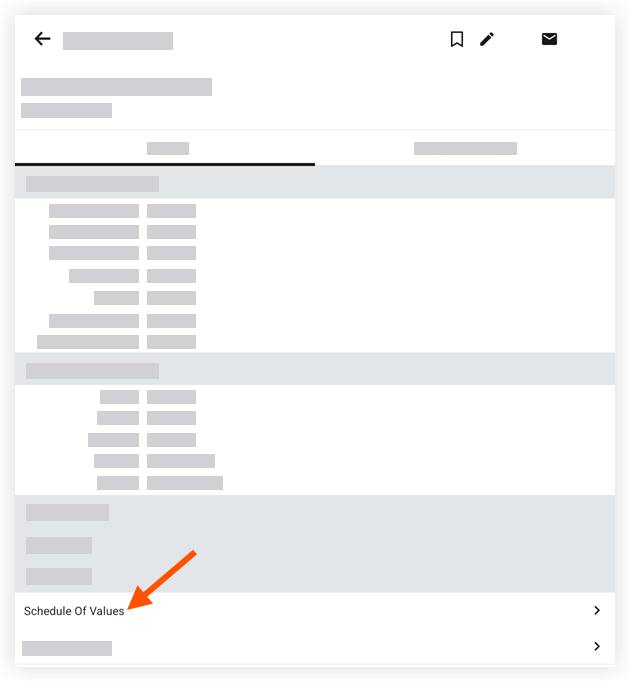
Note: This action reveals a list of the line items belonging to the purchase order's Schedule of Values (SOV).Optional: Tap a line item to view its details.
See Also
Loading related articles...