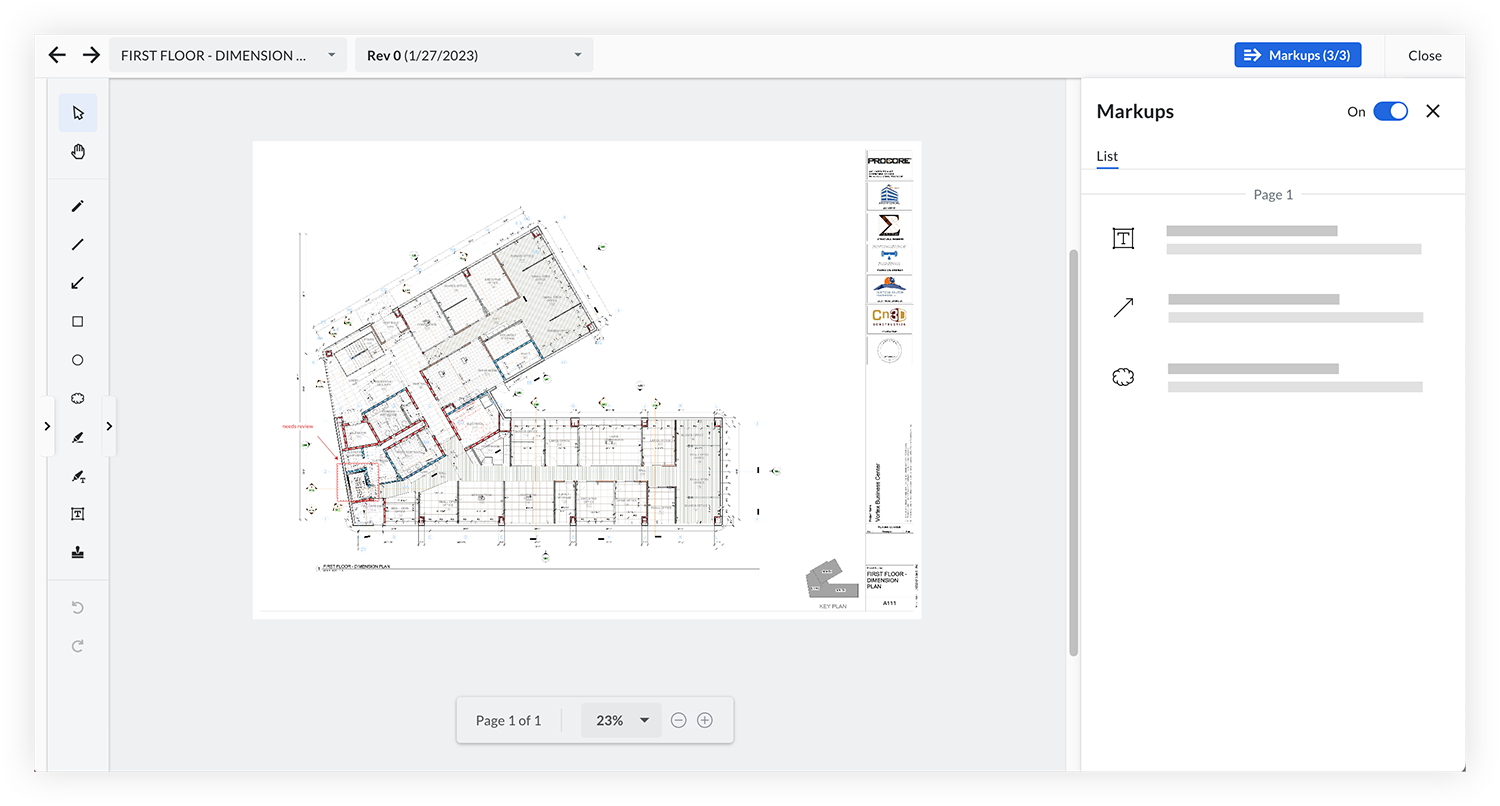
Add Markups in the Document Management Tool

Regional availability

The Document Management tool is available in select countries. It is not yet available for Procore accounts in the U.S. To learn more, please reach out to your Procore point of contact.

Background

When a workflow has been created for a document, Workflow Assignees can add markups while reviewing the document. Markups can only be added during a workflow assignee's step in the workflow.

Things to Consider

  • Required User Permissions:

    • 'Standard' or 'Admin' level permissions to the project's Document Management tool.
      AND

    • Added as an assignee for a workflow.
      Note: By default, only 'Current Step Assignees' can add markups during their step in the workflow. However, the 'Create Markup' permission can be enabled for additional roles ('Workflow Assignees' and 'Workflow Manager'), or disabled for all users. See View and Manage Workflow Permissions in the Document Management Tool.

  • Additional Information:

    • Currently, markups can only be added to PDF documents that are in a workflow. See About Workflows in the Document Management Tool.

    • By default, only 'Current Step Assignees' can add markups during their step in the workflow. However, the 'Create Markup' permission can be enabled for additional roles ('Workflow Assignees' and 'Workflow Manager'), or disabled for all users. See View and Manage Workflow Permissions.

Steps

  1. Navigate to the project's Document Management tool.

  2. Make sure you are in the Documents tab.

  3. Click on the saved view called Assigned to Me that is in the 'In Review' collection.
    Note: You can also access these documents from other saved views, such as 'All Documents' at the bottom. If you have been given 'Create Markup' permissions, the 'Assigned to Me' saved view is not the only place where you can find documents that you can markup.

  4. Click the In Review tab.

  5. Open the document that you want to add markups to.
    This opens the viewer.

  6. The workflow Icon Workflow Pdm panel automatically opens if a workflow is applied to the item. Click the x to close the panel if you want to see other functions in the viewer such as the markup Icon Markup Pdm list.

  7. Add markups to the document as necessary. See the Markup Options section below for information about the markup tools.

  8. When you are finished adding markups, click Close to exit out of the viewer and return back to the list of documents.
    Pdm Markups Viewer

Markup Options

This table lists markup tools and keyboard shortcuts to use when adding markups to PDF files.

图标

姓名

操作

Windows键盘快捷键

Mac键盘快捷键

Icon Markup Select

选择

选择、移动或编辑页面上的标记。要选择多个标记,请按住键盘上的 Shift 键,然后点击组中的每个标记。

V

V

Icon Markup Pan

平移

点击并拖动光标以在页面上移动。对于临时平移,请按住空格键并使用鼠标滚轮。

SHIFT + V

SHIFT + V

Icon Markup Text

文字

添加文本框。双击文本以添加或编辑。在附近显示的样式菜单中调整字体大小或样式。注意:选择该工具后,工具栏中会出现预设选项,用于在键入前选择颜色和样式。

T

T

亮点

突出显示页面上的文本。注意:选择该工具后,工具栏中会出现预设选项,用于在突出显示之前选择颜色和样式。

H

H

标注

带箭头的文本框。点击以开始箭头、结束箭头,然后再次放置出现的文本框。双击文本以添加或编辑。注意:选择该工具后,工具栏中会出现预设选项,以便在创建标注之前选择样式。

Icon Markup Line

线条

绘制直线 (L)、箭头 (A)、折线 (Y) 或曲线线 (U)。单击以结束曲线。双击结束折线。注意: 选择工具后,预设选项会出现在工具栏中,用于在绘制前选择颜色和样式。

L、A、Y 或 U

L、A、Y 或 U

Icon Markup Pen Pdm

绘制手绘线条或形状。注意:选择该工具后,工具栏中会出现预设选项,用于在图纸前选择颜色和样式。

P

P

手绘突出显示

绘制手绘突出显示。注意:选择该工具后,工具栏中会出现预设选项,用于在图纸前选择颜色和样式。

Icon Markup Box

矩形

绘制一个矩形、椭圆或多边形。注意:选择该工具后,工具栏中会出现预设选项,用于在图纸前选择颜色和样式。

R

R

Icon Markup Cloud

用云线条勾选或创建一个形状。

C

C

距离

测量直线、圆弧或周长的距离。笔记: 您可以编辑刻度、度量单位和精度,并根据需要保存到预设。从工具栏访问预设以在测量前应用首选项。

矩形区域

测量矩形、椭圆或面积的面积。笔记: 您可以编辑刻度、度量单位和精度,并根据需要保存到预设。从工具栏访问预设以在测量前应用首选项。

SHIFT + R

SHIFT + R

计数

打一个对勾图标,Procore 会计算文档中的对勾数量。点击对勾以查看当前计数。注意:选择该工具后,工具栏中会出现预设选项,以便在放置对勾之前选择颜色和样式。

邮票

打开图章菜单,然后点击要添加或上传新图章的图章。

小号

小号

木皮

通过点击标记对象来删除它们。

z

z

Icon Undo

撤销

撤消当前审阅会话中最近的标记操作。这不包括添加或移除空白页或封面。

CTRL + Z

CMD + R

Icon Redo

重做

在当前审阅会话中重执行最近撤消的标记操作。

CTRL + 是

CMD + Y

Icon Markup Zoom In

放大

放大页面。

CTRL + 加号(+)或 CTRL + 滚动或向外张开

CMD + 加号 (+) 或 CMD + 滚动或捏出

Icon Markup Zoom Out

缩小

缩小页面。

CTRL + 减号(-)或 CTRL + 滚动或捏合

CMD + 减号(-)或 CMD + 滚动或捏合

Icon Markup Page Next

上一页

移至上一页。

SHIFT + 上箭头(^)

SHIFT + 上箭头(^)

Icon Markup Page Previous

下一页

移至下一页。

SHIFT + 下箭头(DO)

SHIFT + 下箭头(DO)

See Also

Loading related articles...