文档管理工具的导入字段选项
Regional availability
The Document Management tool is available in select countries. It is not yet available for Procore accounts in the U.S. To learn more, please reach out to your Procore point of contact.
The Document Management tool is available in select countries. It is not yet available for Procore accounts in the U.S. To learn more, please reach out to your Procore point of contact.
如果要为文档管理字段添加大量字段选项,可以下载CSV文件模板并导入选项。
Required User Permissions:
'Admin' level permission to the Company level Admin tool.
Note: Users with 'Admin' level permissions to Document Management tool can show or hide default field options for a specific project on the Configure Settings page. See Configure Settings: Document Management.
你只能在移除所有字段后导入字段。请参阅下面的删除字段选项部分。
Navigate to the Company level Admin tool.
On the sidebar, scroll down to 'Tool Settings' and click Document Management.

Click the Default Fields tab.
Click the arrow  icon next to the field (Classification, Discipline, Status, Type, Volume / System) that you want to manage options for.
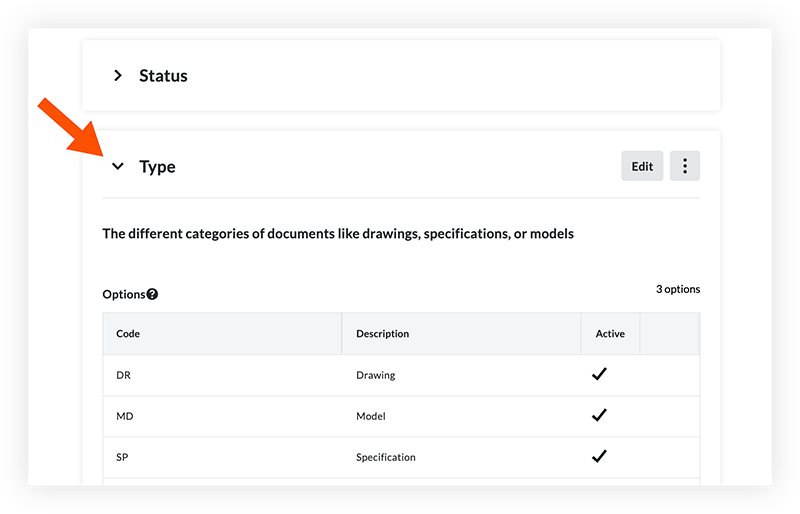
Follow the steps below:
Delete Existing Field Options
Download and Fill Out the Template
Import the Template
Note: After you delete field options, you won't be able to use them on any projects. However, these options will not be deleted from any current documents that use them.
Click the vertical ellipsis  icon for the field and select Delete All.
Click Delete Options to confirm the deletion.
If the changes do not show in the table after a few moments, refresh the page and return to the table.
Click the vertical ellipsis icon for the field and select Download Template.
A CSV file will download to your computer.
Open the CSV file and fill out the field options under the provided columns. Do not change the headings of the template or add any additional columns.
Save your file.
Click the vertical ellipsis icon for the field and select Import Template.
Select the file that you updated.
If the template contains one or more options that were previously deleted, you'll see a 'Recover Options' window.
To recover any options, click Continue.
To return to your import and create a unique field option, click Cancel.
To continue with the import without making changes, click Ignore.
The field options are automatically added. You can make any changes as needed. See Manage Custom and Default Fields and Fieldsets for the Document Management Tool for more information.
Loading related articles...