Set Up Your Outbound Email Signature in the Emails Tool
背景
要个性化你从 Procore 发送的电子邮件的签名,你需要将其添加到"我的个人资料设置"页面。你使用以下步骤所做的更改将影响你从 Procore 工具发送的所有电子邮件的签名。
需要考虑的事项
所需的用户权限:
项目主页工具的"只读"或更高级别权限。
其他信息:
你的电子邮件签名将应用于你从 Procore 中的工具发送的任何电子邮件。
Steps
Log in to the Procore web application. See Log in to Procore Web.
Click your name in the top-right corner of the program and choose My Profile Settings.
In the Personal tab, scroll down to the Email Signature box.
Note
By default, the phrase 'Sent From Procore.' appears in the box. It is recommended that you leave that text in your signature as shown below, so the messages recipients reading your message will be able to quickly see that the email was sent from Procore.
In the Email Signature box, create and format your email signature.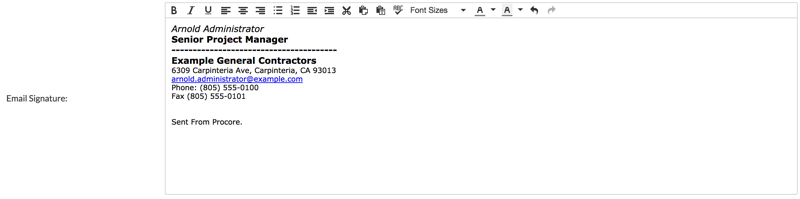
Click Update.
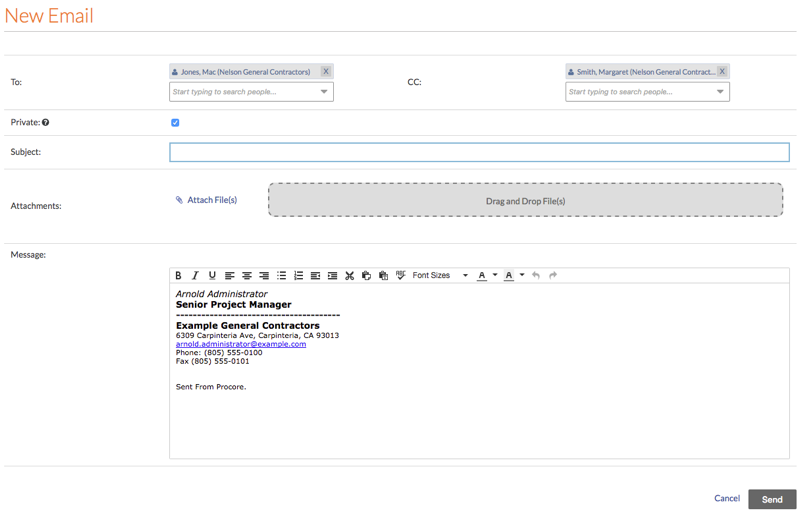
Note: This saves your email signature. Now, when you create a new email from the Emails tool, or other tools in Procore, you signature automatically appears in the new message as shown below: