Create a Meeting
Background
You can use the Meetings tool to create detailed agendas for your project meetings. The first step in the process is to create the meeting. This process lets you set the date, time, location, and attendees. This process is described in the Steps below. Once the meeting is created, you can move on to create categories, which are used to group agenda items into subjects. Then, you can add the individual agenda items to your categories.
Things to Consider
The meeting must be in agenda mode. This is the default setting when you create a new meeting.
To learn how to convert a meeting to minutes mode, see Convert a Meeting to Minutes Mode.
Steps
Navigate to the project's Meetings tool.
Click + Create Meeting.
Select + New or select a meeting template from the list.
Under Meeting Information, fill in the relevant fields for the new meeting:
Meeting #: Indicates the meeting number. When you create a meeting, Procore automatically assigns the first meeting in a series the number one (1). Then, when you create a follow-up meeting, Procore assigns the next meeting in the series the number two (2), and so on. Note: This field does not support the entry of letters, symbols, and leading zeros.
Meeting Name: Type a name, title, or descriptive subject line for the meeting.
Meeting Link: Copy and paste the video conferencing link for your attendees to access.
Note: The full URL of the meeting link (starting with https://) must be included in order for it to display as a hyperlink.Private Meeting: Mark this checkbox so that the meeting is only visible to scheduled attendees and users with 'Admin' level permissions to the Meetings tool.
Draft Meeting: Mark this checkbox to save the new meeting as a 'Draft.'
Meeting Date: Use the calendar control to set the date for a meeting.
Timezone: Select a timezone for the meeting.
Start Time: Enter a start time for the meeting. Include a.m. or p.m. after the start time.
End Time: Select an end time for the meeting. Include a.m. or p.m. after the finish time.
Meeting Location: The location where the meeting will be held (e.g., Conference Room A, Conference Room B, and so on).
Overview: Enter a meeting summary or description. You can use the controls in the formatting toolbar to format your overview.
Attachments. Attach any relevant files. You have these options:
Click Attach File(s) and then choose the appropriate option from the shortcut menu that appears.
ORUse a drag-and-drop operation to move files from your computer into the grey Drag and Drop File(s) box.
Add Attendees: Add meeting attendees by selecting people from this drop-down list. To appear as a selection in this list, a person must have a Procore user profile in the Project Directory. Additionally, if a permission template is applied to the person, the permissions must include 'Read Only' or higher on the Meetings tool.
Note: If no Start Time or End Time is selected, Procore will automatically set these to 12:00 AM.
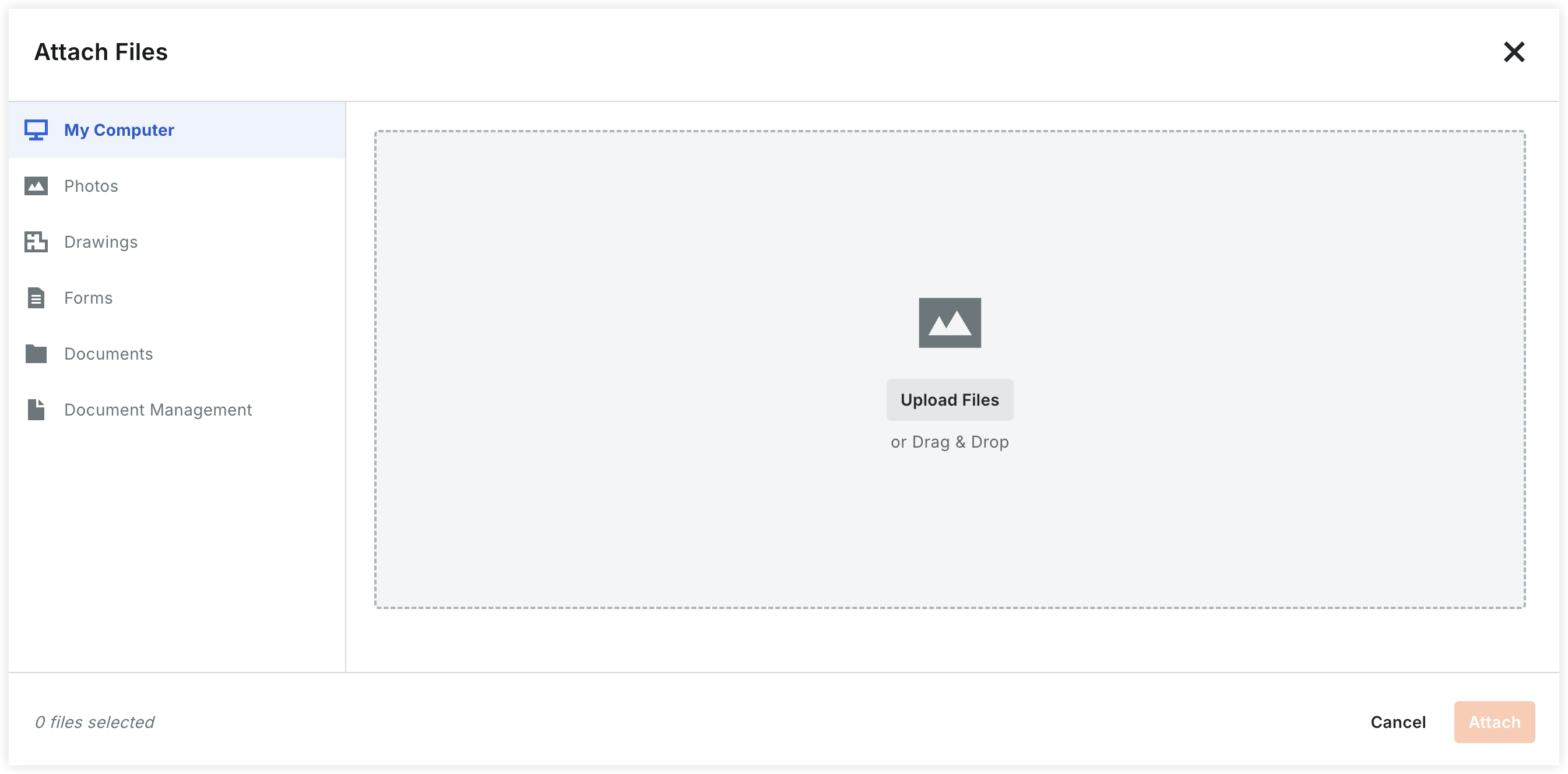
Add Attachments: Click Attach File(s) to open the upload modal. You can source files from the following locations:
My Computer: Upload files directly or use the Drag & Drop area.
Photos: Attach images directly from the project’s Photos tool.
Drawings: Link specific sheets from the Drawings tool.
Forms: Attach filled-out forms from the Forms tool.
Documents: Select files already stored in the project's Documents tool.
Document Management: Attach files from the Document Management tool.
Add Attendees:
Select users from the drop-down list. (Users must have 'Read Only' or higher permissions on the Meetings tool to appear here).
Note: Selecting 'Yes' in the Minutes Approval Requested field triggers a response workflow for the attendee.
Click Create and Proceed to Agenda.

A banner appears to confirm that the meeting was created and the page title changes to 'Meeting Agenda for '
If you want to add additional categories to your meeting, see Create a Meeting Category.
If you want to add meeting items (a.k.a., agenda items) to your meeting, see Add a Meeting Item.
Procore automatically adds one (1) category, name 'Uncategorized Items,' to the meeting. You can rename this category by typing over the name.