Respond to an Observation (iOS)
Background
Once you have been assigned an observation, you will get an email containing all relevant details you will need to complete the work associated with resolving the issue. Once you have completed the work, you will log into Procore to change the status to 'Ready for Review'; this informs the observation's creator that they can now review the completed work.
Things to Consider
Additional Information:
The ball will shift to the observation's assignee's court when the status of the observation is 'Initiated' or 'Not Accepted.'
If you do not have enough information to complete the work outlined in the observation, you can comment on an observation to request further information. See Add a Comment to an Observation.
如果此资产或项目之前在你的移动设备上进行查看和缓存,则可以在离线模式下查看或编辑。重新建立网络连接后,在离线模式下执行的任务会与 Procore同步。
Steps
Navigate to the Observations tool on an iOS mobile device.
Tap the observation assigned to you that requires your response.
Note: The name of the assignee is displayed next to the observation's title.Tap the Status dropdown to change the item's status
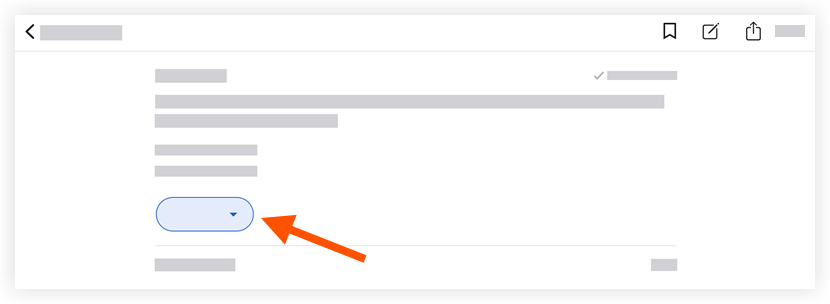
Change the status to Ready for Review if the work is ready for the creator to review.
Click Update to post your status change and send an email to the creator notifying them of your response.
Note: Changes are automatically saved; tap out of the Status menu to return to the observation.
Next Steps
After the creator reviews your work, they will change the status to "Closed" if they have approved the work or "Not Accepted" if the work is still considered unresolved. If the creator sets the status to "Not Accepted," you will be notified via email and you will need to repeat the steps above as necessary.
See Also
Loading related articles...