Log in to Procore-Initiated SSO for Okta
Background
When your company's account is configured for Procore-Initiated SSO for Okta, you will need to know your email address and password for your Okta domain.
Things to Consider
Required User Permission:
To receive a "Welcome to Procore' email, a user with 'Admin' level permission to an organization's Company Directory must do the following for you:* Create a Procore user account for you in their company's Directory tool. See Add a Person to the Company Directory or Add a Person to the Project Directory.
Supported Platforms:
Procore Web
Procore for iOS
Procore for Android
Prerequisites:
Your company's Procore Administrator and/or Okta must complete the preparation and integration steps in Setup Guide: Okta.
Steps
Navigate to the Procore web application at: https://app.procore.com.
Enter your email address for your Okta domain.
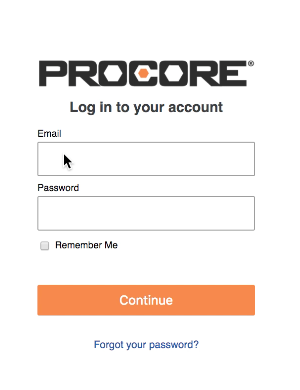
Note: When your Procore-Initiated SSO application is properly configured, the Procore login page recognizes your email and automatically hides the password field. See Setup Guide: Okta.
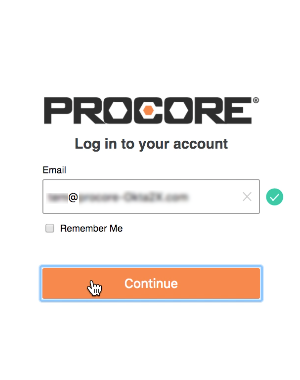
Click Continue.
The system displays the Okta login page.Complete the following data entry:
Email. Enter your email address for your company's Okta domain.
Password. Enter the password for your company's Okta domain.
Note: If you do not know your login information, contact your company's Administrator for Okta.
Click Sign In.
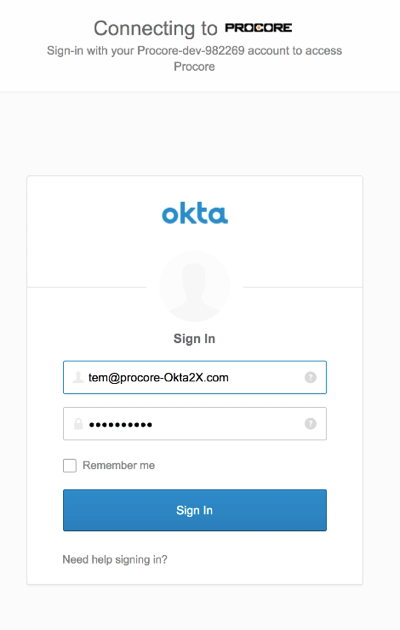
The system logs you into Procore.
See Also
Loading related articles...