View Bids in Portfolio Financials
Legacy
This information is intended for accounts with Portfolio Financials product in Procore. Please reach out to your Procore point of contact for more information.
This information is intended for accounts with Portfolio Financials product in Procore. Please reach out to your Procore point of contact for more information.
After inviting bidders, a card is shown for each vendor on the Manage Bids tab.
Required User Permissions:
'Limited' access to the project or higher.
Note: Users with 'Limited' access must be on the Bid Room Team for the project.
Navigate to the relevant Bid Room.
Click Manage Bids.
You can view the following details on each vendor's card:
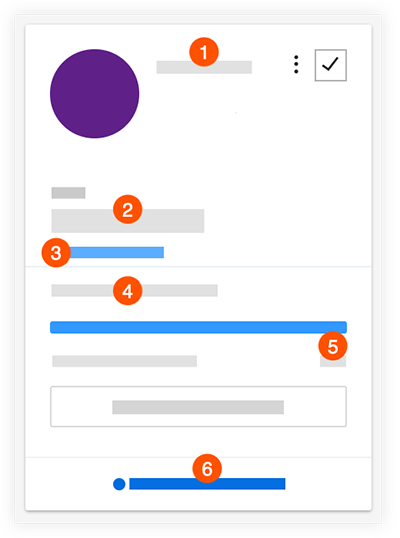
 The name of the vendor.
 The most recent bid amount.
 A link to previously submitted bids, if there were revisions.
 The percentage that the bid form is complete. Note: Fields with a value of $0 will count as "complete" towards the overall completion percentage.
 How many of the bid room documents have been downloaded by the vendor.
 To view messages and activity, click Messages and Activity. See View Messages and Activity in a Bid Room.
Loading related articles...