Reallocate Timecard Entry Hours for an Employee
Background
You can split time on unapproved timecards into multiple entries. For example, you can change a 10-hour entry of 'Regular Time' into 8 hours of 'Regular Time' and 2 hours of 'Overtime' to reflect a worker's actual hours.
Things to Consider
The sum of each entry must equal the total hours of the original timecard.
Steps
Navigate to the company's Timesheets tool.
Locate the timecard entry for the employee whose time you want to split.
Click the split timecard
 icon on the timecard entry.
Split the time.
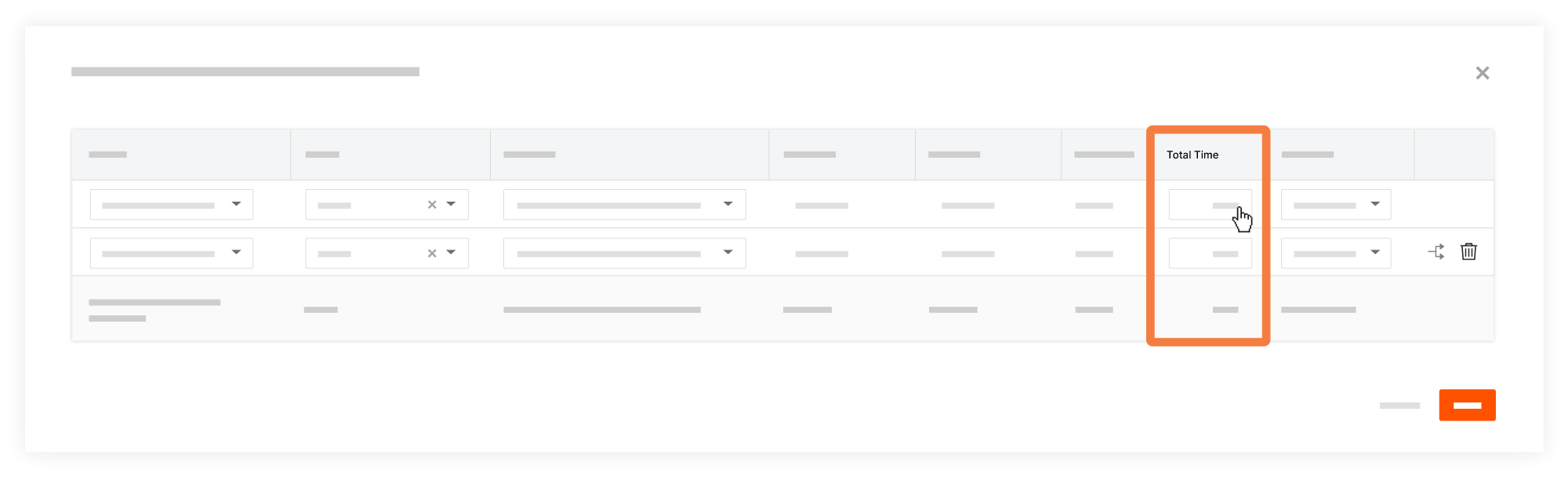
For project timecards using the 'Total Hours'
Enter a smaller number of hours in the Total Time value column on the first timecard entry.
Enter the balance in the next timecard entry, or create multiple timecard entries to reallocate the balance.
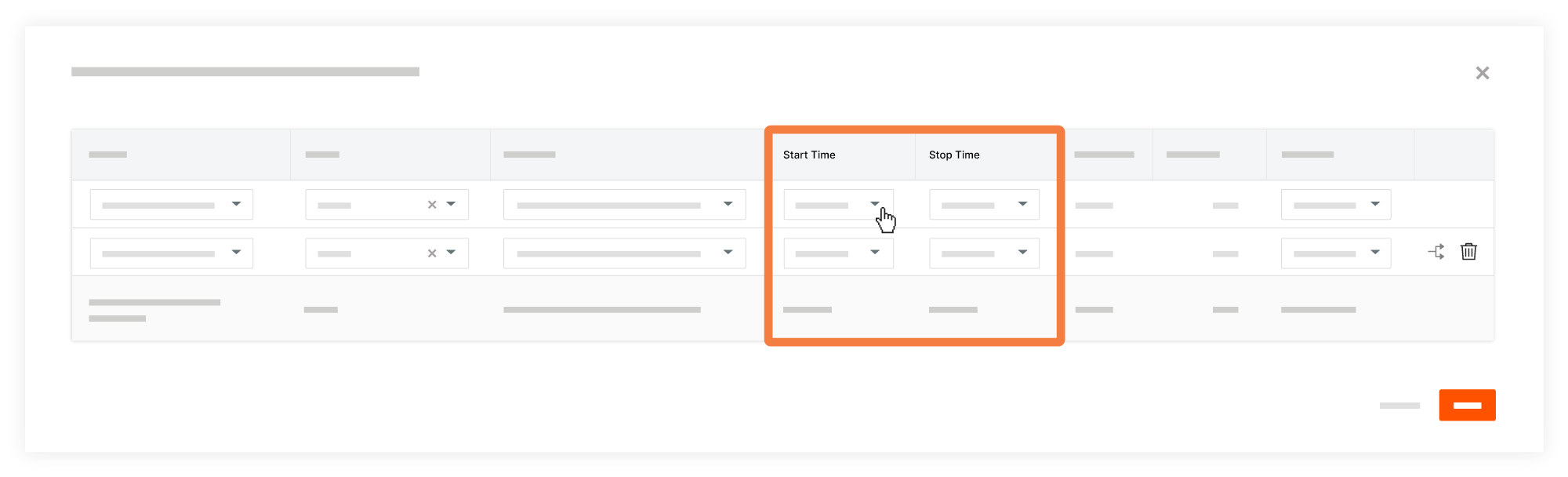
For project timecards configured to use the 'Start Time/Stop Time'
Change the values in the Start Time and Stop Time columns on the first timecard entry. An additional timecard entry is automatically created with the remaining hours for the original timecard.
Continue to add entries to match the work performed, until the Total Time matches the original timecard.
Optional: Update the timecard entries.
Project. Select the project for each timecard entry.
Classification. Select the classification for each timecard entry.
Task Code. Select the task code for each timecard entry.
Sub Job. Select the sub job for each timecard entry.
Cost Code. Select the cost code for each timecard entry.
Location. Select the location for each timecard entry.
Time Type. Select the time type for each timecard entry.
Billable. Select whether or not the entry is billable.
Description. Enter a description for the entry.
Click Save.
See Also
Loading related articles...