Sign a Timesheet (iOS)
Background
Employees can sign off on their time entries and confirm that their timecard information is accurate.
Things to Consider
If a signed timesheet is edited, the signature is removed, and the employee must re-sign the edited entry.
The text in the Signature field can be customized by an administrator in the Company Timesheets tool.
先决条件
Steps
Navigate to the project's Timesheets tool on your iOS mobile device.
Select the date for the timesheet you want signed.
Tap the timesheet.
Tap the timecard entry that needs an employee's signature.
Tap Sign.
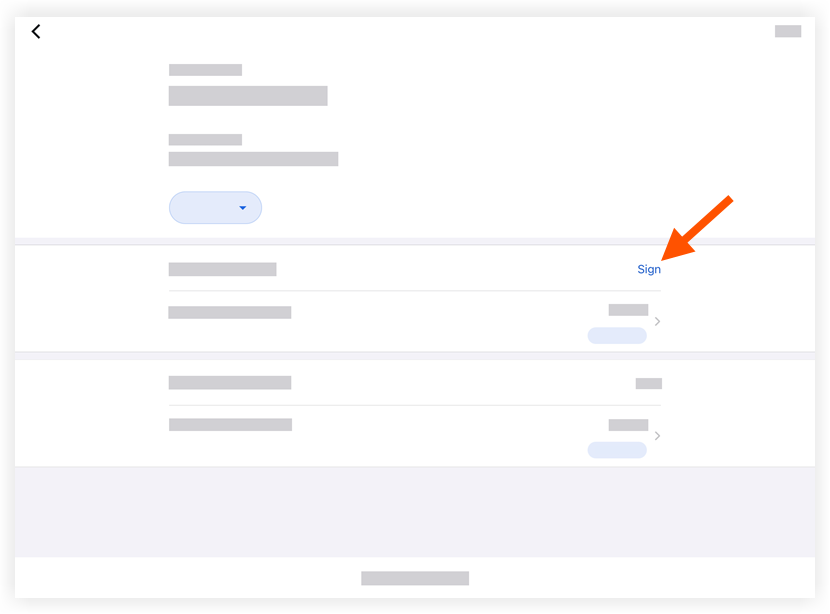
Hand the device to the employee to sign the timecard.
The employee enters their signature by dragging a finger above the signature line.
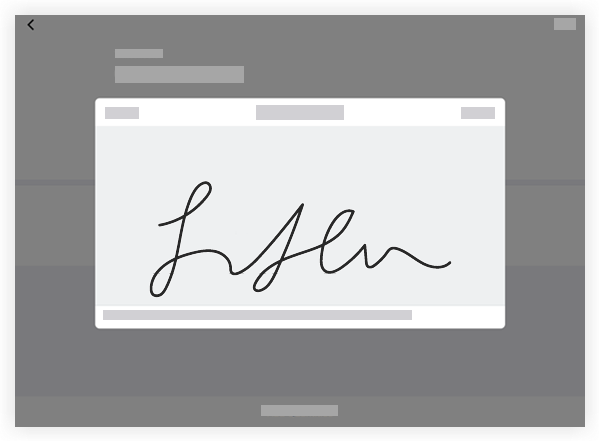
If required, mark the checkbox acknowledging that the timecard hours are accurate.
Tap Submit to approve and save the employee's signature.
To view the signature in the future, tap Signed next to the employee's name.
Next Step
See Also
Loading related articles...