Manage Columns
Procore’s budget and forecasting views allow teams to customize how they display and report on project financial data. The modernized experience introduces a more efficient, decoupled experience by separating column management from individual views.
With this new update, columns are managed independently rather than being built inside a specific view. This allows users to create a column once and enable it across multiple views, significantly reducing the effort required to manage and duplicate data layouts.
Budget and forecasting columns allow you to customize how financial data is displayed and calculated. You can create custom columns, utilize Procore standard columns, or modify existing configurations.
Creating a Column
To create a new column:
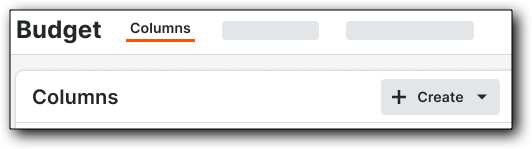
In the 'Budget Settings' page, click the Columns tab.
Click the + Create drop-down list and select one of the following column types:
Source: Direct data from a specific tool or origin.
Calculated: A column based on a mathematical formula between other columns.
Forecast to Complete: Columns used specifically for forecasting projected costs.
Configure the required fields and settings in the configuration panel.
Click Create to save.

Note: Once created, these columns can be added to your various Budget and Forecasting Views.
Understanding Locked (Standard) Columns
Locked columns are Procore Standard Columns. These are pre-configured, "out-of-the-box" columns that form the foundation of Procore Standard Views. Here are a few things to consider when working with these columns:

You cannot delete standard columns or change their default names.
You can provide a Display Name alias when assigning these columns to a specific Budget View.
Most standard columns can be duplicated for custom use, except for:
Original Budget Amount
Budget UOM / Unit Cost / Unit Qty
Notes
Budget Modifications
Duplicate a Standard Column
Select a column from the Columns list to open the detail panel. Click Duplicate to re-create it as a custom column. See Duplicate a Standard Column.

Edit or Delete Custom Columns
Only custom columns can be edited or permanently deleted.

To Edit.
Click on the specific custom column from the list to open the detail panel and make changes. Changes can be saved in the existing column or as a new column. See Edit a Column.
To Delete.
Click the Trash icon in the top right corner of the detail panel. See Delete a Column.
Note: If a column is currently assigned to a Budget or Forecasting View or is being used as a component in a Calculated Column, Procore will provide a warning notification before allowing you to proceed with deletion.
Searching and Filtering Columns
To quickly locate a specific column:

Search.
Use the search field to find columns by name.
Column Type.
Use the dropdown to filter by the following column types:
Calculated Column
Source Column
Standard Column
Reportable Column.
Use the dropdown to filter by reportable status:
Yes
No
For details on searching and filtering columns, see Search for and Filter Columns.
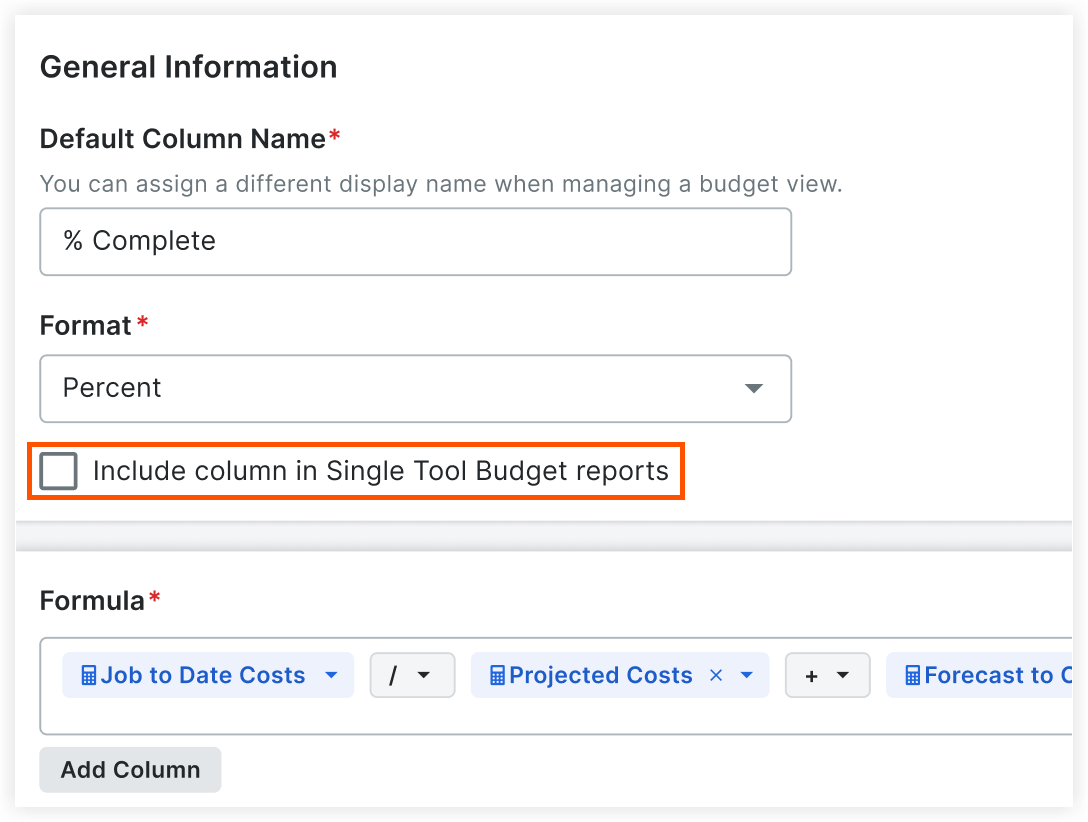
Include Columns in Single Tool Budget Reports
Mark the Include column in Single Tool Budget reports checkbox for standard or custom columns in the configuration panel to add columns to Single Tool budget reports.
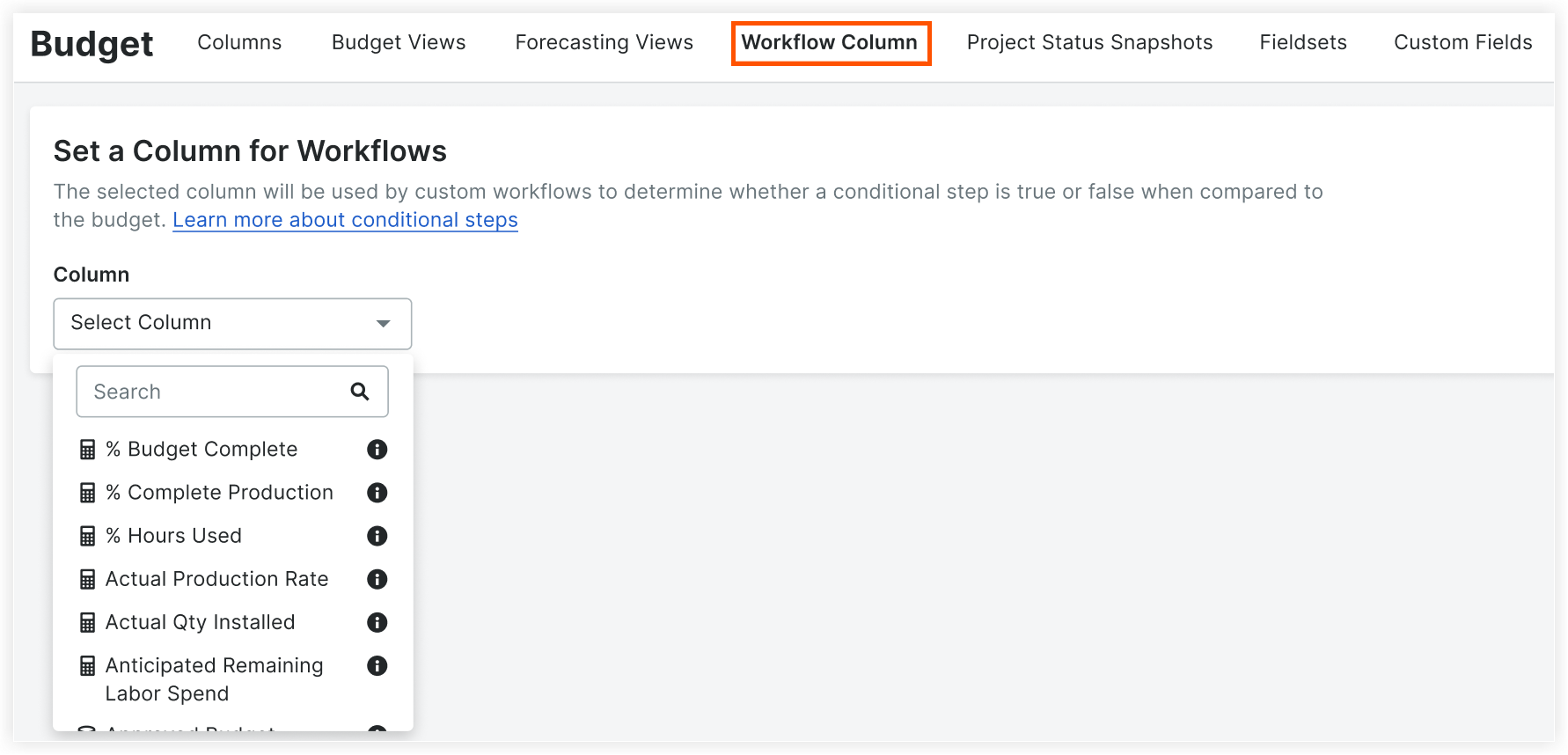
Set a Column for Workflows
Select a budget or forecasting column to serve as a reference point for conditional steps within custom workflows. See Set a Column for Workflows.