Remove Configurable Fieldsets from Projects
Hintergrund
Ein konfigurierbarer Feldsatz ist eine Gruppe von Feldern in bestimmten Procore-Tools, die je nach den Anforderungen Ihres Unternehmens auf optional, erforderlich oder ausgeblendet gesetzt werden können. Dies ermöglicht eine bessere Kontrolle über die Dateneingabe, wenn Benutzer Elemente in Procore-Projekten erstellen und bearbeiten.
Siehe Was sind konfigurierbare Feldsätze und welche Procore-Tools unterstützen sie?
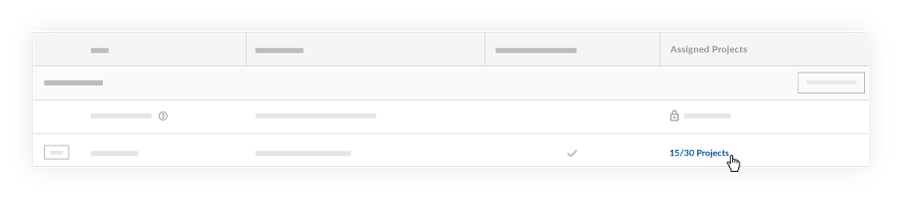
Wenn konfigurierbare Feldsätze zuvor auf ein Projekt angewendet wurden, können Sie die benutzerdefinierten Konfigurationen aus diesem Projekt entfernen. Nachdem ein Projekt abgewählt wurde, kehren die Feldsätze zu den Standard-Feldsätzen von Procore zurück.
Wenn Sie einen Feldsatz löschen möchten, siehe Konfigurierbare Feldsätze löschen.
Things to Consider
Required User Permissions:
'Admin' level permissions on the Company level Admin tool.
Additional Information:

After a project has been deselected from the 'Assigned Projects' window, the fieldsets will return to Procore's default fieldsets.
Configurable fieldsets applied to projects will be reflected on both Procore's web and mobile applications.
Voraussetzungen
See Create New Configurable Fieldsets OR click here to view the steps.
Navigate to the Company level Admin tool.
Under 'Tool Settings', click the tool you want to create configurable fieldsets for.
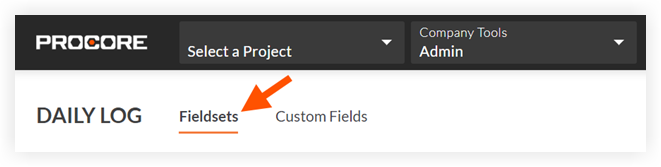
Click the Fieldsets tab.
Note: Tools without other settings in the Company level Admin tool will open to this page automatically.Click Create Fieldset and if required, select the fieldset type.
Enter a name for the fieldset, then click Create.
On the 'Edit Fieldset' page, each field name has the following options:
Do one of the following:
Click the toggle to the ON
 position to make the field visible in the section.
 Click the toggle to the OFF
 position to hide the field in the section.
Note: A faded toggle icon indicates that the field is visible and cannot be changed to hidden.
Do one of the following:
Mark the 'Required' checkbox to designate the field as required.
Clear the 'Required' checkbox to designate the field as optional. Notes:
Fields without a checkbox are optional by default and cannot be changed to required.
A gray marked checkbox
 indicates that the field is required by default and cannot be changed to optional.
Optional: If available, click Create Section to create a new section. See Create Custom Sections.
Click Save.
In the 'Apply changes to [#] project(s)?' window, click Assign Projects to add the fieldset to projects.
In the 'Assign Projects' window, mark the checkbox next to each project you want to apply the fieldset to and click Update.
In the 'Apply changes to [#] project(s)?' window, click Confirm.
Optional: To set a fieldset as the default for new projects, click the
 icon at the end of its row on the 'Fieldsets' tab and select Set as New Project Default.
 Note
Projects created from a project template that includes fieldsets will inherit the fieldsets from the project template instead of your company's default fieldsets. See Configure a Project Template.