Verwalten einer Gruppe im Gespräche-Tool
Hintergrund
Wenn Sie eine Gruppe im Gespräche Tool erstellen, erstellen Sie eine Gruppenunterhaltung, mit der Sie gleichzeitig eine Nachricht an bestimmte Teammitglieder senden können. Siehe Erstellen einer Gruppe im Gespräche-Tool. Diese Gruppennachrichten können von Teammitgliedern im Abschnitt "Gruppen" des Gespräche-Tools angezeigt und beantwortet werden, der nach Projekten geordnet ist.
Dinge, die Sie beachten sollten
Erforderliche Benutzerberechtigungen:
Procore-Benutzer mit der Berechtigung "Gruppe erstellen und verwalten". Siehe Konfigurieren des Zugriffs und der Einstellungen für das Gespräche-Tool. Diese Berechtigung kann auf "Administratoren", "Interne Mitarbeiter" oder "Jeder" festgelegt werden:
Wenn "Administratoren" ausgewählt ist, benötigen Sie "Admin"-Berechtigungen für das Adressbuch-Tool auf Projekt- oder Unternehmensebene.
Wenn "Interne Mitarbeiter" ausgewählt ist, müssen Sie als interner Mitarbeiter gekennzeichnet sein. Siehe Wie füge ich jemanden als Mitarbeiter meines Unternehmens hinzu?
Wenn "Jeder" ausgewählt ist, müssen Sie Mitglied des Unternehmensadressbuchs sein.
Zusätzliche Informationen:
Wenn das Gespräche Tool so konfiguriert ist, dass nur Administratoren Gruppen erstellen und verwalten können, empfehlen wir, mindestens einen Administrator in einer Gruppe zu halten, damit diese verwaltet werden kann. Admin-Benutzer werden in der Benutzerauswahlliste mit
(Admin)hinter ihrem Namen angezeigt.Jede Gruppe im Gespräche Tool kann bis zu 2.000 Mitglieder unterstützen.
Steps
Navigate to the Conversations tool (click the conversations
 icon in the top menu of Procore).
In the 'Groups' section, click the group that you want to manage.
Click Manage Group.
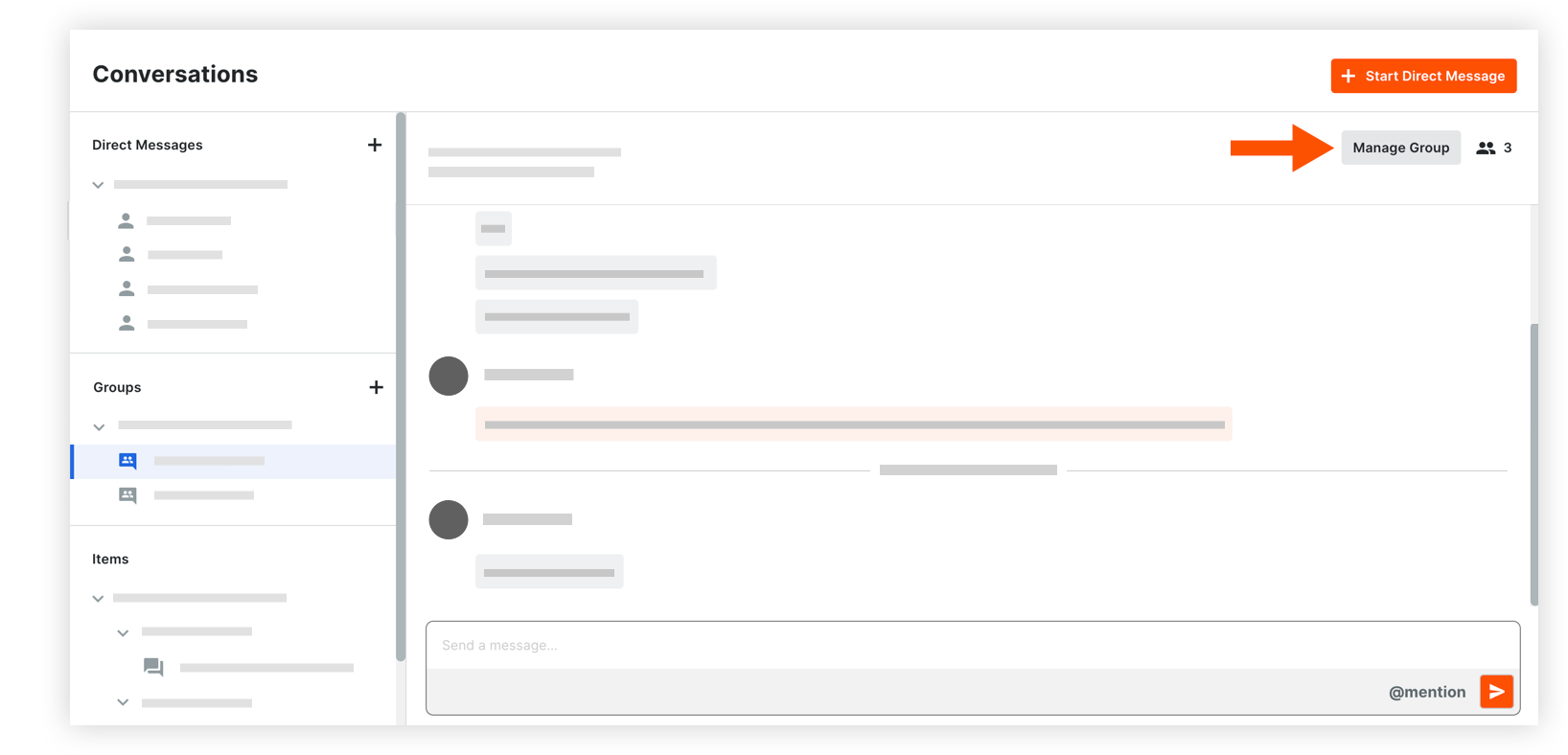
The following information can be modified:
Group Name: Edit the name for the group if necessary.
Team Members: Manage the list of team members as necessary, choosing between manual selection and using the project's Directory:* Selected users:* To add users: Click into the menu to see the list of project users. Select any users you want to add to the group.
Note: If your project has distribution groups, you can select one to add those members to the conversation group. See Add a Distribution Group to the Project Directory.* To remove users: Click the x icon on the user's name.* Everyone in this project's Directory: This includes automatic updates to the team members when any user is added or removed from the project Directory in the future.
Note: Company Admins who are not yet in the project's Directory are prompted to add themselves before proceeding with this option.
Click Save Changes.
See Also
Loading related articles...