Erstellen eines benutzerdefinierten Antwortsatzes für Inspektionen
Background
The option to create custom response sets provides you and your team with flexibility and customizable options that fit your company's needs. These custom response sets are created at the Company level and then assigned to items within a Company level inspections template.
Things to Consider
Prerequisites
Steps
Navigate to the Company level Inspections tool.
Click Configure Settings (
 ).
).Click Response Types.
Note: If you don't see the column you're looking for, scroll to the right of the table view.Click Create to create a new custom response set.
BETA FEATURE: The Neutral (Amber) response option for Inspections is currently available as part of an Open Beta release. To join this beta, see Manage Features With Procore Explore.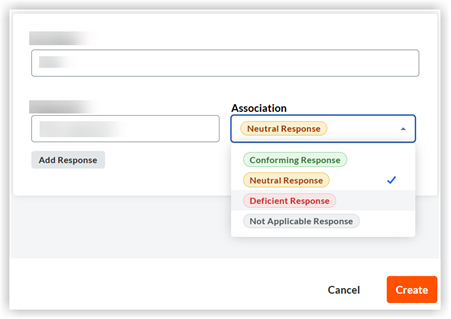
In the 'Create Custom Response Set' window, complete the following:
Set Name: Enter a name for the custom response set.
Response 1: Enter a name for the first response option.
Select the color you want to associate with the response.
Click +Add Response to add another response option and repeat the above steps.
Once you have added all of the necessary response options, click Create.
Next Steps
See Also
Loading related articles...