Add a Condition Step
Configure a 'Condition Step' in the Workflow Builder by naming it, defining conditions with tool-specific statements, and setting the next workflow steps based on whether conditions are met.
Steps
Add a Condition Step
Navigate to the Workflow Builder. Use these steps when configuring a workflow step in a new or existing workflow.
Under General Information in the Type list, choose: Condition Step
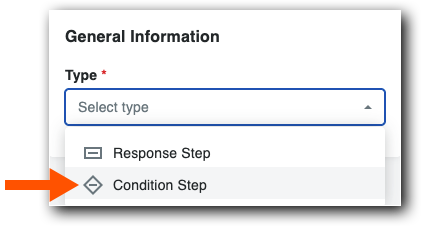

Add General Information
Name your workflow in Step Name.
Confirm that Condition Step is set in the Type list.
From the When list, select a tool-specific statement.
Trinkgeld
Fehlt ein Feld? Benutzerdefinierte Feldtypen "Einzel- und Mehrfachauswahl" müssen im benutzerdefinierten Feldsatz auf "Erforderlich" und "Sichtbar" gesetzt werden, um in einer Bedingung verwendet zu werden.
Choose an available operator from the Is box. Each condition statement has different options. To learn more, see Tool-Specific Statements and Conditions.

In the Then list, choose the next step or create a new step for the workflow template.
In the Otherwise list, choose the next step or create a new step for the workflow template.
Trinkgeld
Der Workflow-Schritt geht immer in den Schritt Ansonsten über, den Sie definieren, wenn eine Bedingung nicht erfüllt ist oder wenn das Element leer ist.