Configure the Tool Order for a Project
Steps
Open the Procore app on an Android mobile device and select a project.
Tap the Tools
 screen with the Project Overview.
Click the filter
 icon.
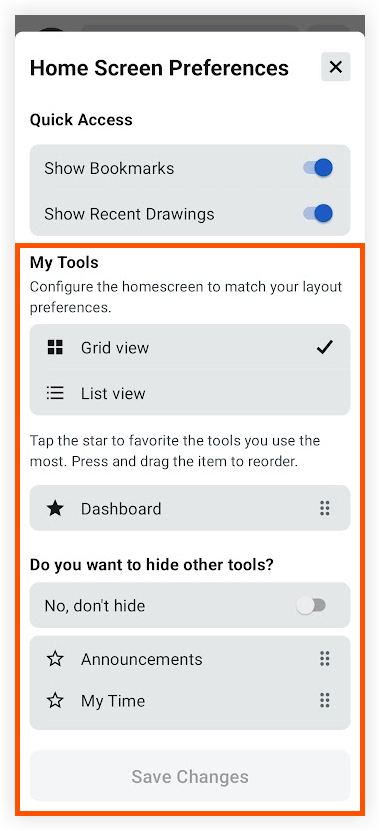
icon.Tap Grid View or List view depending on how you want tools to appear on the home screen.
Tap the star
 icon next to each tool that you want to show at the top of the My Tools section of the Project Overview screen.
Press and hold the reorder
 icon next to a tool to drag it into a different order.
Continue reordering tools to your preference.
Optional: If you want to hide the remaining tools so that they do not appear on the home screen, tap the toggle
 icon to the ON position.
Tap Save Changes.