Enable Sub-Tier Waivers

  1. Navigate to the Project level Invoicing tool.

  2. Click the Settings Icons Settings Gear icon.

  3. Scroll to the Lien Waivers section.

     Tips

  4. Mark the Enable Sub-Tier Waivers check box to show the 'Sub-Tiers' card on the 'Lien Rights' tab of the project's subcontractor invoices. Clear the checkbox to hide the sub-tier card.

  5. Under the How should sub-tier waivers be collected on this project? section, you have these options to collect signed waivers from sub-tier contractors:

     Note

    Invoice contacts must collect signatures from their sub-tier contractors outside of Procore. Next, they upload and submit the signed waivers with their subcontractor invoice for the Open billing period. See Upload Sub-Tier Waivers to a Subcontractor Invoice as an Invoice Contact.
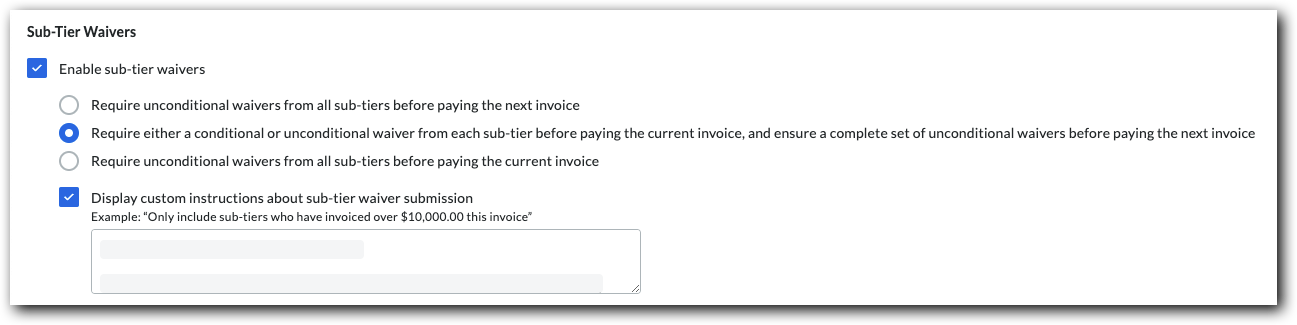

    • Require unconditional waivers from all sub-tiers before paying the next invoice. Most payors collect unconditional waivers for the previous invoice before paying the next invoice.

    • Require either a conditional or unconditional waiver from each sub-tier before paying the current invoice, and ensure a complete set of unconditional waivers before paying the next invoice. Some payors collect either a conditional or unconditional waiver before paying the current invoice. They also ensure a complete set of unconditional waivers are collected for the previous invoice, before paying the next invoice.

    • Require unconditional waivers from all sub-tiers before paying the current invoice. Some payors collect only unconditional sub-tier waivers before paying the current invoice.

  6. Mark the Display Custom Instructions About Sub-Tier Waiver Submission checkbox to type a custom instruction message about sub-tier waiver submissions in the Enter Custom Instructions box.

    Example

    If you only want to collect sub-tier waiver signatures from sub-tier subcontractors who invoiced over a certain amount (for example,$10,000.00), type the instructions and the amount in the text box. If you require notarized signatures on sub-tier waivers, include that in the instructions.

    Enable Sub Tier Waivers

    The 'Instructions from [General Contractor Name]' area on the sub-tiers card. If you are NOT required to collect waiver information on an invoice, the 'Sub-Tier Information for This Invoice' card appears on the invoice. If you are required to collect waivers for the current invoice or a previous invoice, the card name(s) match the project's waiver collection requirements set on the Invoicing tool by an . See Enable Sub-Tier Waivers on Subcontractor Invoices as an Invoice Administrator.

    Instructions From General Contractor Name

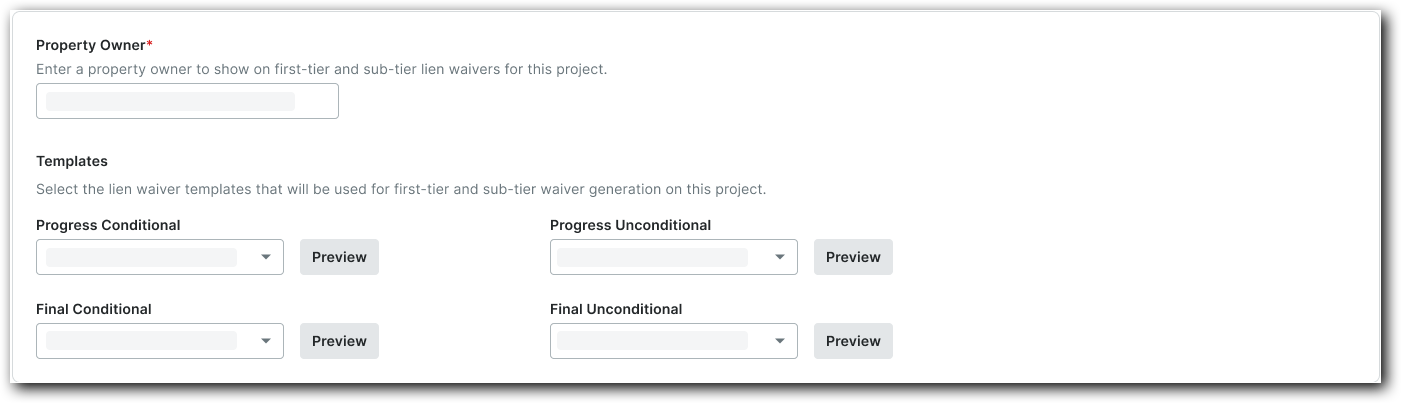
  7. Under Property Owner, type the property owner's name. Your entry appears on this project's first- and sub-tier lien waivers.

  8. Under Templates, select the desired lien waiver template for each lien waiver type from the drop-down lists.

     Tips

  9. Click Preview to view your selected lien waiver types. Property Owner And Templates Config

  10. Click Save.