Add an Estimate
Background
After adding takeoffs for the project, you can view project estimates, set labor costs and profit margins, and generate downloadable proposals. You can also manually enter information on an estimate without takeoffs. Each section on the Estimating page displays the appropriate elements of the project’s proposals, such as material quantity and costs, labor and labor costs, inclusions and exclusions, and an overall summary of the proposal. See What fields are in an estimate and how are they calculated?
Things to Consider
Required User Permissions for the Bid Board tool.
Required User Permissions for the Estimating tool.
Required User Permissions for the Portfolio Planning tool.
Information from the Takeoff tab automatically populates in the Estimating tab.
Any items on the Estimating tab that are highlighted in blue can be edited.
The star
 icon indicates Premium features available for purchase in Procore Estimating and Free Accounts only.
Primary estimates appear with a green
 icon.
icon.Alternate estimates included in the primary estimate appear with a blue
 icon.
icon. Alternate estimates not included in the primary estimate appear with an empty circle
 icon.
icon.
Steps
Navigate to the Bid Board or Portfolio Planning tool and select the project.
OR
Navigate to the project's Estimating tool.The Estimating tool opens to the Takeoff tab. From here, you can enter your takeoff data or switch to the Estimating tab. See Add Takeoffs.
Click the Estimating tab.
Click the estimate selection menu.
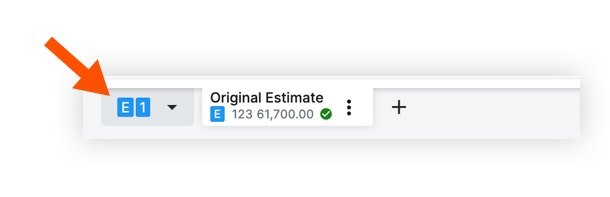
Do one of the following:
If you want to use an existing estimate, click Copy Selected Estimate.
If you want to create a completely new estimate, click Create Empty Estimate.
See the articles below for available options:
