Configure the Map View
Things to Consider
Required User Permissions for Project Map
Required User Permissionsf or General Maps
Steps
Change Base Map
Rotate Map
Show Pins or Thumbnails
Change Base Map
Navigate to the tool's map.
Click the base map icon on the map.
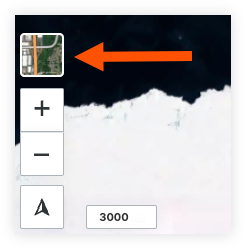
Select your preferred base map.
Rotate Map
Navigate to the tool's map.
Click the compass
 icon and hold. Rotate the map to your desired orientation.
Note: Double clicking the compass arrow will reset the map orientation to north.
Show Pins or Thumbnails
Navigate to the tool's map.
If using the Project Map, select a tool and the list
 icon.
icon.Click the configure
 icon.
icon.Select one of the following options for your 'Photo Point Style':
Thumbnails
Pins
See Also
Loading related articles...