View and Filter Snapshots in the Project Status Snapshots Tool
Beta
Periods for project status snapshots are currently in beta. To enable this feature, join the Budget: Periods on Project Status Snapshots beta program through Procore Explore.
Periods for project status snapshots are currently in beta. To enable this feature, join the Budget: Periods on Project Status Snapshots beta program through Procore Explore.
The Project Status Snapshots tool lets users view, filter, and open snapshots from your company's Procore projects.
Required User Permissions:
To view all project status snapshots, 'Read Only' or higher permission on the Project Status Snapshots tool.
Users also need 'Read-Only' or higher permission in the Budget tool to see the snapshot.
To change the status of a project status snapshot or export a snapshot list, 'Read-Only' or higher permission on the Project Status Snapshots tool.
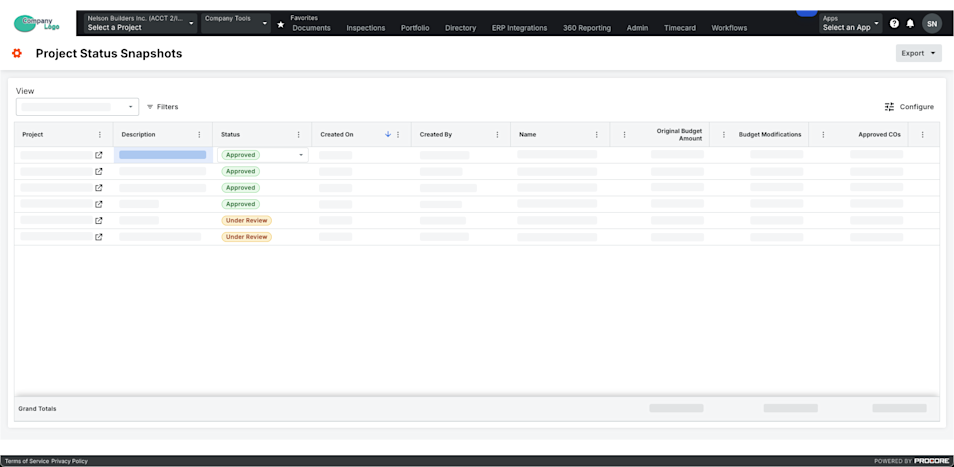
Navigate to the Company level Project Status Snapshots tool.
Locate a snapshot in the list.
Note: If you want to view the snapshot, click the Open  icon in the Project column.
To see project status snapshots in specific Procore projects and their own ad hoc snapshots, grant users access to the Budget tools within those projects.
 (Optional) Filter by period or comparison period:
Period. Select one or more periods from this drop-down list.
You can choose from options such as Current, Last Period, None, or specific financial periods.
By default, the Current period is selected until changed.
Comparison Period. Select a period from this drop-down list to compare against the primary period. See Analyze Variance Between Snapshots in the Project Status Snapshots Tool.
You can choose from options such as Current, Previous, or specific financial periods.
If you select the Previous option from the Comparison Period drop-down list, the prior period is automatically selected based on the period currently chosen in the Period drop-down list.
By default, the Previous period is selected until changed.
The Period and Comparison Period fields are available only when the Financial Periods setting is enabled. See Enable or Disable Financial Periods for Project Status Snapshots.
To filter the list view, click Filters.
This opens the Filters panel.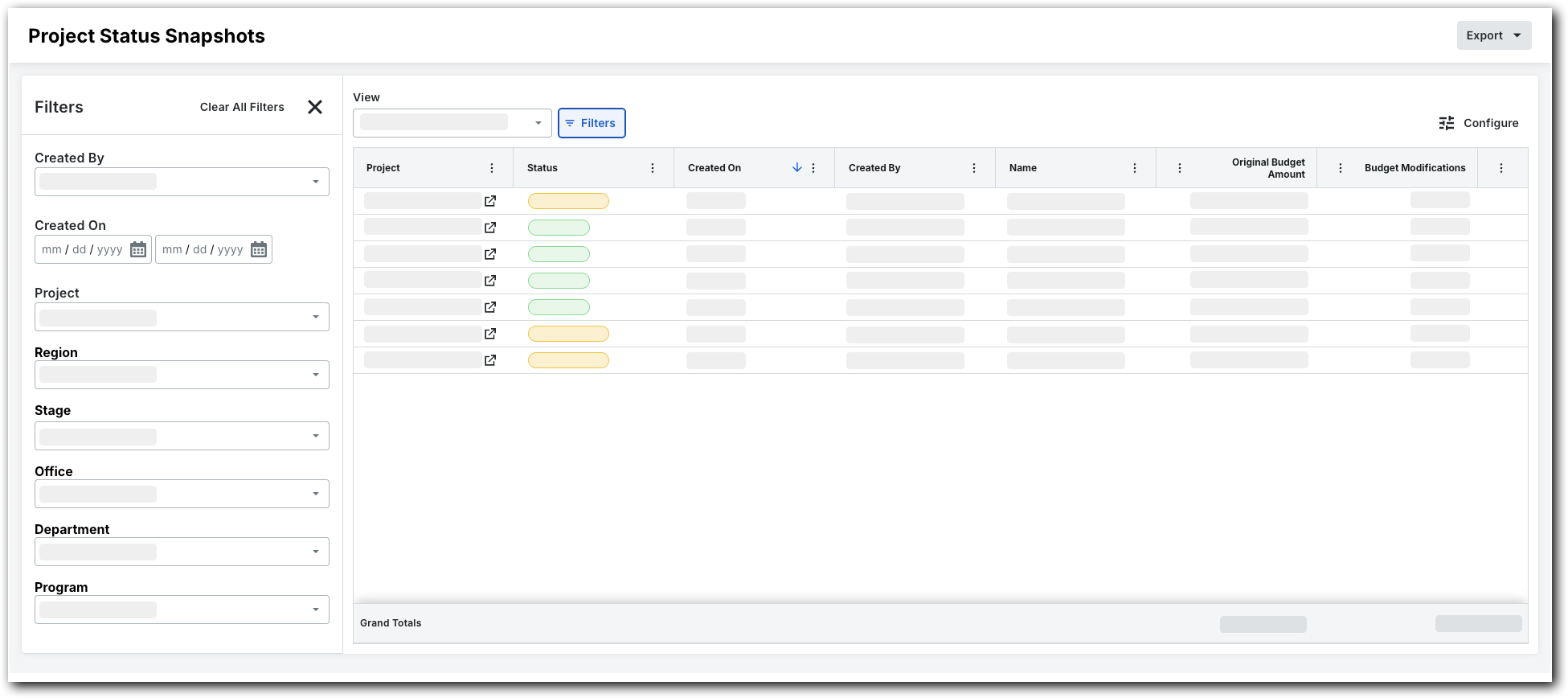
Set the available filters to focus on the snapshots you want to view. The filter options are:
Created By. Choose one or more snapshot creators.
Created On. Set a time frame using the calendar.
Project. Select specific projects to view their snapshots.
Region. Pick a project region.
Stage. Choose a project stage.
Status. Select a custom status. For details on how to create a custom status, see Create a Custom Status for Project Status Snapshots.
Office. Select an office.
Department. Pick a department.
Program. Select a program.
Loading related articles...