Connect to SQL Server Using Python (SSIS)
Overview
The Analytics Cloud Connect Access tool is a command-line interface (CLI) that helps you configure and manage data transfers from Procore to MS SQL Server. It consists of two main components:
user_exp.py (Configuration setup utility)
delta_share_to_azure_panda.py(Data synchronization script)
Prerequisites
Python and pip installed on your system.
Access to Procore Delta Share.
MS SQL Server account credentials.
Download the zipped package from the company level Analytics tool (via Analytics > Getting Started > Connection Options > SQL Server).
Install required dependencies: pip install -r requirements.txt.
Steps
Initial Configuration
Data Synchronization
Delta Share Configuration
MS SQL Server Configuration
SSIS Configuration
Initial Configuration
Run the configuration utility: python user_exp.py
This will help you set up the following:
Delta Share source configuration
MS SQL Server target configuration
Scheduling preferences
Data Synchronization
After configuration, you have two options to run the data sync:
Direct Execution python delta_share_to_azure_panda.py
ORScheduled Execution
If configured during setup, the job will run automatically according to your cron schedule.
Delta Share Configuration
{
"shareCredentialsVersion": 1,
"bearerToken": "xxxxxxxxxxxxx",
"endpoint":"https://nvirginia.cloud.databricks.c...astores/xxxxxx"
}Get required fields:
Note: These details can be obtained from the Analytics web application.ShareCredentialsVersion: Version number (currently 1).
BearerToken: Your Delta Share access token.
Endpoint: Your Delta Share endpoint URL.
Save the file in a secure location.
When configuring the data source, you'll be asked to provide:
List of tables (comma-separated).
Leave blank to sync all tables.
Example: table1, table2, table3.
Path to your config.share file.
MS SQL Server Configuration
You'll need to provide the following MS SQL Server details:
database
host
password
schema
username
SSIS Configuration
Using the command line, navigate to the folder by entering 'cd '.
Install required packages using 'pip install -r requirements.txt' or 'python -m pip install -r requirements.txt'.
Open SSIS and create a new project.
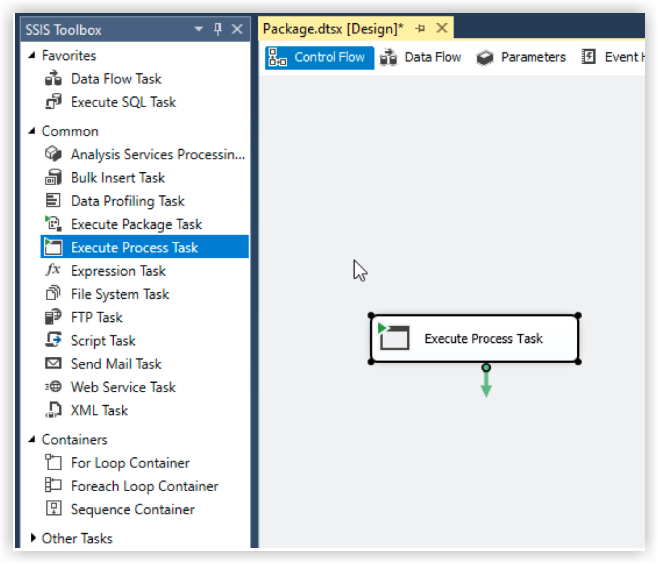
From SSIS Toolbox, drag and drop 'Execute Process Task' activity.
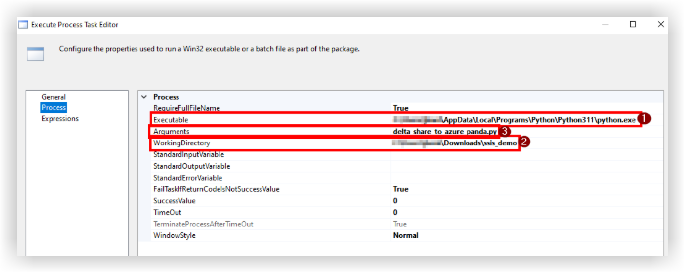
Double-click on 'Execute Process Task' and navigate to Process tab.
In 'Executable', enter the path to python.exe in python installation folder.
In 'WorkingDirectory' enter a path to the folder containing the script you want to execute (without script file name).
In 'Arguments' enter the name of the script 'delta_share_to_azure_panda.py' you want to execute with the .py extension and save.
Click on 'Start' button in upper pane:

During the execution of the task, output of the Python console is displayed in the external console window.
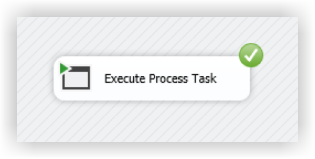
Once the task is done it will display a green tick: