Set a Default Funding Account
Navigate to the Company level Payments tool.
Click the Payments Settings
 icon. This opens the Payments Settings page. The 'Business Entities' page in the 'Payments Processing' tab is active by default. This page lists the business entities configured to pay invoices in your company's Procore Pay software.
Locate the business entity to modify and click its funding account(s) link.
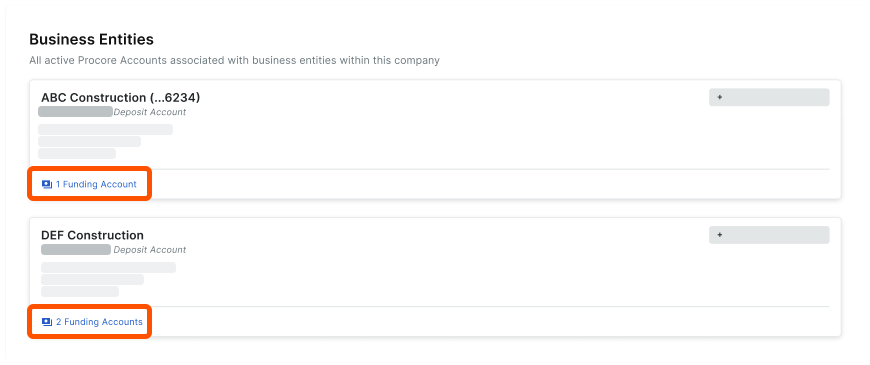
Locate the account to modify.
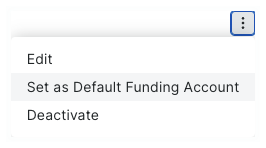
Click the Overflow menu and choose Set as Default Funding Account.
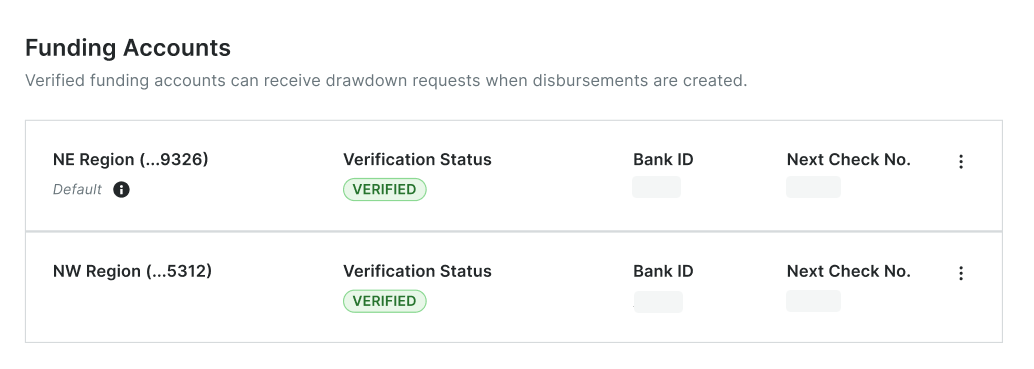
The account is marked Default and moves to the top of the entity's Funding Accounts list.
 Tip
TipCan I deactivate our default account at a later time? No. The default account cannot be deactivated in Procore. Before you can deactivate an account, you must remove the default designation. See Deactivate Funding Accounts as a Payor.


