Indicate Your Intention to Bid
Background
When a general contractor invites you to bid, you will probably not know your bid amount right away. However, you will want to make sure the general contractor knows that you intend to bid on the project and are gathering information.
Things to Consider
Required User Permissions:
'Read Only' level permissions or higher for the Planroom tool.
Additional Information:
If you submit a bid, your intention to bid is automatically updated.
Prerequisites
The Procore project owner must invite your company to bid on the project.
Steps
There are two ways you can indicate your intention to bid on a project:
From the invitation email
From the Planroom tool in Procore
From the Invitation Email
Open the bid invitation email.
If prompted, sign the non-disclosure agreement. See Sign a NDA for a Bid Package.
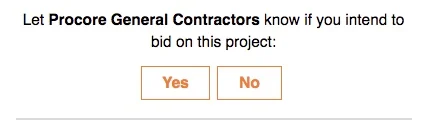
Click Yes or No under 'Let [Name of Company that invited you] know if you intend to bid on this project'.
You have indicated an intent to bid on the package and can access the bid form by logging in.


From the Planroom
From the Invitation to Bid email, click View in Procore to log in and view the bid form. Continue to step 6.
Note: If this is your first Procore bid invitation, you will be prompted to create a password for your account using your email address as the login.
OR
Go to https://app.procore.com or https://login.procore.com.Enter your Procore login credentials.
Select the relevant company from the Select a company list.
Navigate to the Planroom tool.
Select the relevant bid package.
If prompted, sign the non-disclosure agreement. See Sign a NDA for a Bid Package.
If you're not automatically redirected, navigate to the company's Planroom tool.
Note : The Planroom tool manages the bidding submissions and bid organization for the company to which you are submitting a bid.Click on the bid package.
In the banner, click Will Bid or Will Not Bid.
Next Steps
See Also
Loading related articles...