Review a Subcontractor Invoice as an Admin (Legacy)
Legacy Content
This page details the legacy subcontractor invoice experience. A modernized experience is also available.
This page details the legacy subcontractor invoice experience. A modernized experience is also available.
Required User Permissions:
To review a subcontractor invoice as invoice administrator from the Commitments tool, 'Admin' level permissions on the project's Commitments tool.
Additional Information:
To review the status of the line item review as an 'Invoice Contact,' see Review a Subcontractor Invoice as an Invoice Contact.
To learn how to review a subcontractor invoice from the project's Invoicing tool, see Review a Subcontractor Invoice as an Admin.
Place the invoice in the Under Review status. See What are the default statuses for Procore invoices?
Navigate to the project's Commitments tool.
Click the Contracts tab.
Locate the purchase order or subcontract with the invoice in the contracts table. Click its Number link to open it.
In the purchase order or subcontract, click the Invoices tab.
In the 'Invoices (Requisitions)' table, locate the invoice to review. Then click View.
Click the Detail tab.
Click the Edit button.
In the Line Items table, approve or reject each line item on the invoice as follows:
To approve a line item, click the GREEN checkmark so it appears in a circle .
To reject a line item, click the RED 'x' so it appears in a circle  .
.
Enter a reason in the Leave a Reason Why box. 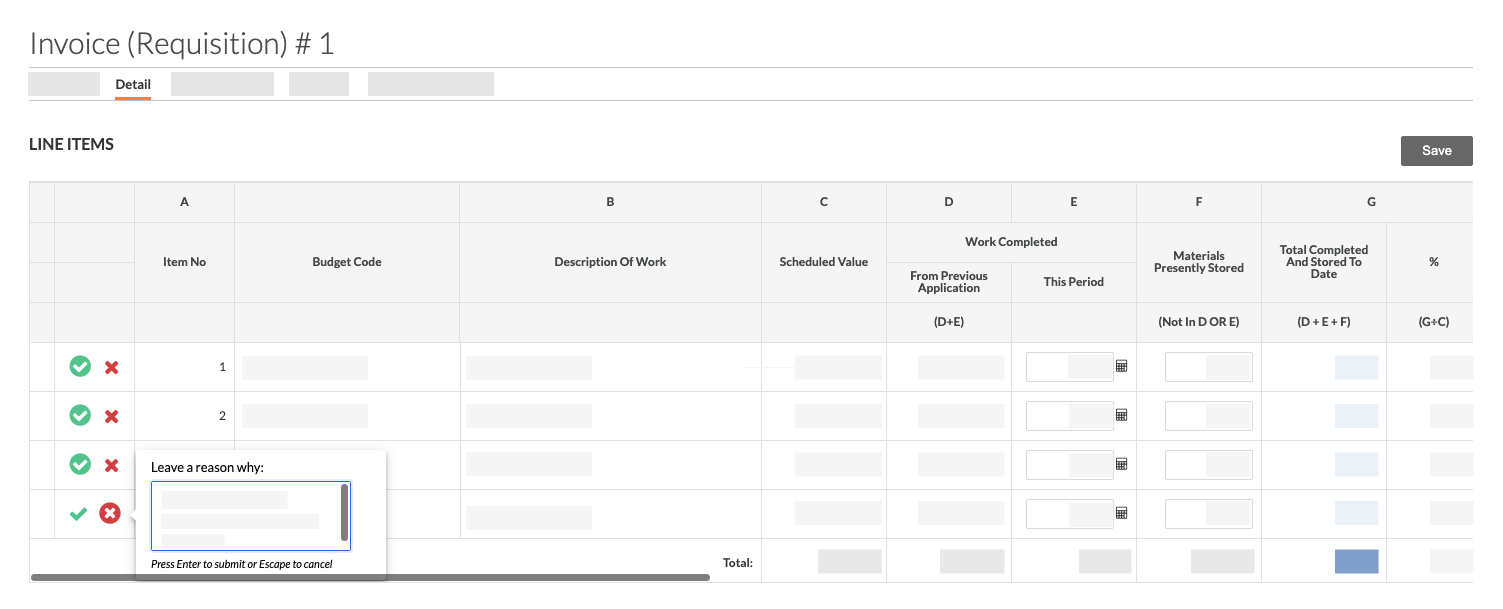
Comments entered in the 'Leave a Reason Why' box are NOT included in the automated email sent to the invoice contact. However, you can export a PDF that includes a 'Reasons for Difference' table that shows the comments as entered.
Press ENTER to submit your explanation for rejecting the line item.
If you have turned the 'Show amounts subcontractors claim' option ON in the Configure Settings page of the project's Invoicing tool, the 'Proposed Amount' column appears.
The 'Proposed Amount' column can reflect what an invoice contact submitted, a user with 'Admin' level permissions can adjust the 'Work Completed This Period' and 'Materials Presently Stored' columns separately to set the appropriate amounts.
Click Save.
In the Finish Review popup window, update the status as needed and add any information in the Overall Comments box.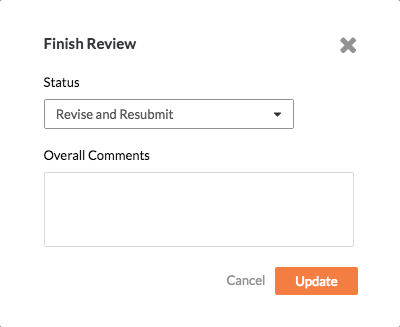
Click Update to complete the review.
If you rejected any of the line items, Procore automatically sets the status to Revise and Resubmit. The system also sends an email notification so the downstream collaborator can Revise & Resubmit an Invoice as an Invoice Contact.
If you approved all of the line items, Procore automatically sets the status to Under Review.
Loading related articles...