About Coordination Issue (CI) Templates
Planned Feature: Pre-Release Documentation
This article documents a planned feature. Release timing is not guaranteed, and functionality described here may change before launch.
This article documents a planned feature. Release timing is not guaranteed, and functionality described here may change before launch.
Streamline 3D clash resolution with standardized company- and project-level Coordination Issue (CI) Templates. With CI Templates, teams can cut down on repetitive data entry and resolve model clashes faster.
Once created and toggled on in Procore Projects, templates are available for use inside the Next-Gen Viewer, BIM and VDC teams can pin issues directly to spatial coordinates when viewing models to keep projects moving forward.
Coordination Issue templates use a dual-tier inheritance model that balances enterprise governance with on-site flexibility:
Feature/Action | Company Level Templates | Project Level Templates |
|---|---|---|
Who Controls It? | Company Admins. Managed centrally and pushed out to every Procore project. | Admins. Managed at the project-level to fit the job's scope. |
Setup & Permissions | Set once by Company Admins. Inherited by all projects, but locked as Read-Only at the project level unless Active. | Fully editable. Admins can create new templates from scratch or duplicate existing company templates to tweak them. |
Categories & Codes | Globally locked. Renaming a category or abbreviation updates across all projects for future issues automatically. | Driven by company standards to keep data structure and clash reporting clean across projects. |
Field Customization | Establishes company-wide standards for baseline fields (e.g., Priority, Due Date, Trade, Type). | Admins can override company defaults and set local fields (e.g., specific Locations, Assignees, Watchers, and Custom Fields). |
Activation Toggle | Turns a template on or off across every active project in the entire company account at once. | Admins toggle individual company or project templates on/off to match their specific job scope. |
Deletion Rules | Deleting a company template permanently removes it from all linked projects. Users can no longer create new issues with it. | Admins can delete local project templates or simply toggle off company templates they don't need. |
Instant 3D Pin Placement in Model Manager
In the Next-Gen Viewer, users can drop spatial pins directly on model geometry to create new coordination issues. The new issue form is pre-filled with template data, reducing the amount of time spent doing data entry for new issues.
4-Character Visual Pin Abbreviations:
Every template features a unique, up to 4-character uppercase abbreviation (e.g., CLSH, DUCT, ELEC) that renders directly on the 3D pin icon, providing immediate visual identification of issue types within a project model's federated scene.
Multi-Surface & Authoring Tool Support:
Templates are accessible across the Next-Gen Viewer, the web application, and directly within Autodesk® design authoring applications (AutoCAD®, Navisworks®, and Revit®) from the Procore BIM Plugin.
Category Groupings:
Templates are organized by custom categories (e.g., Structural, Mechanical, Architectural) for intuitive browsing, sorted alphabetically in menus and lists.
When a Company Admin updates a template, Procore protects existing workflows and keeps project teams informed:
Automatic Updates: Uncustomized template fields immediately propagate company-wide across all Procore projects, without needing further administrative action.
Outdated Badge: An 'Outdated' badge displays for templates whenever a Company level field update conflicts with a customized Project level field.
Side-by-Side Review: Project Admins fist compare the Company level and Project level fields side-by-side, and then choose to apply, skip, or sync the changes.
No User Disruption: 'Outdated' badges only appear for Admins. End users can keep placing pins and creating coordination issues in the Next-Gen Viewer without interruption.
This diagram outlines the workflow for creating and managing CI Templates.

Admins can configure the following fields in Company level CI Templates.
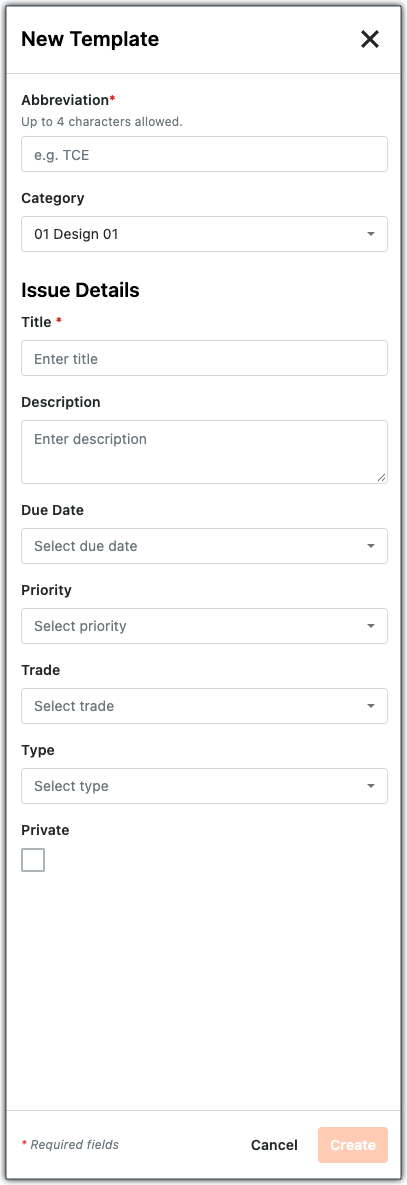
Click a link to learn about the data entry fields:
New Template:
Enter up to four (4) characters. Use clear, recognizable shorthand, such as DUCT, ELEC, FIRE, MECH, PIPE, or STRU to help field teams and BIM/VDC coordinators quickly identify issues when viewing models. Abbreviations must be unique to your library. Keystrokes are automatically converted to uppercase.
Select a name-only grouping (up to 30 characters ) for coordination issues created with the template. Admins update these selections as described in Create Categories to Organize CI Templates.
Issue Details:
Enter a descriptive title for a coordination issue.
Enter any default text, instruction, or standardized phrasing.
Select the number of days from creation for a new issue's due date or define a custom number of days.
Select one of the system's default levels: Low, Medium, High, or Critical.
Select a discipline from the menu. To create selections, see Add a Custom Trade.
Select a coordination issue type.
Place a mark in this check box so any new item created is marked Private at creation. This limits visibility to the issue Creator, designated Assignee, explicitly added Watchers, and any Project Admins.
Get Started with CI Templates
Loading related articles...