Include an Alternate Estimate with the Primary Estimate
Background
Including an alternate estimate allows you to factor in the total cost of a secondary project scenario into your primary financial breakdown. Unlike merging estimates, which creates a new combined record, this action only incorporates the total dollar amount. This is useful for high-level financial reporting where you need to account for alternate costs without cluttering the primary estimate's line items or proposal details.
Things to Consider
Required User Permissions:
‘Standard’ or ‘Admin’ level permissions on the project’s Estimating tool.
Additional Information:
This action only affects the total estimate amount; individual line item amounts do not carry over to the estimate or the proposal.
Primary estimates appear with a green
 icon.
icon.Alternate estimates included in the primary estimate appear with a blue
 icon.
icon. Alternate estimates not included in the primary estimate appear with an empty circle
 icon.
icon.
Steps
Navigate to the Bid Board or Portfolio Planning tool and select the project.
OR
Navigate to the project's Estimating tool.Click the Estimating tab.
Locate the estimate you want to include and click the vertical ellipsis
 icon.
icon.
Click the toggle ON
 next to Include in Primary Estimate.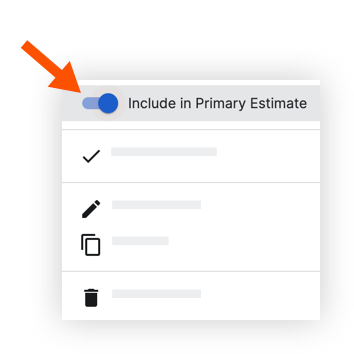
The circle icon in the alternate estimate will turn blue
when included in the primary estimate.


See Also
Loading related articles...