Merge Estimates
Background
After creating multiple estimates and change orders for a project, you may want to combine them into one estimate. The merge feature allows you to combine the group items of multiple estimates into a new estimate.
Things to Consider
Required User Permissions for the Bid Board tool.
Required User Permissions for the Estimating tool.
Required User Permissions for the Portfolio Planning tool.
This feature is only available when there is more than one estimate in the project.
Primary estimates appear with a green
 icon.
icon.Alternate estimates included in the primary estimate appear with a blue
 icon.
icon. Alternate estimates not included in the primary estimate appear with an empty circle
 icon.
icon.
Steps
Navigate to the Bid Board or Portfolio Planning tool and select the project.
OR
Navigate to the project's Estimating tool.At the bottom of the screen, find the estimate or change order that you want to merge into a new estimate.
Click the vertical ellipsis
 icon on the original estimate.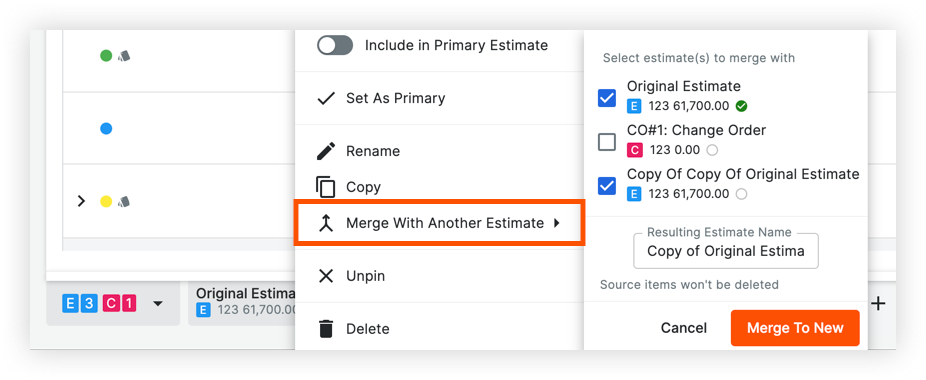
Click Merge With Another Estimate.
Mark the checkbox next to any estimates or change orders that you want to merge the original estimate with.
Enter a name for the new estimate.
Click Merge To New.
This automatically merges data from the selected estimates or change orders into a new estimate.

See Also
Loading related articles...