View the Project Map
Things to Consider
Prerequisites
Enable the Project Map beta in Procore Explore.
Steps
Navigate to Maps from the ‘Project Tools’ or 'All Tools' menu.
Select the arrow
 icon next to the tool you want to see items for.
Note: To view the associated tool items, you must have 'Read Only' level permissions or higher to the relevant tool.Incidents
Inspections
Observations
Locations
Photos
Punch List
RFIs
From the list view, locate the item you want to see. See Filter the Map.
Click the find on map
 icon to center the item's pin on the map.
Click the item name, map pin, or thumbnail on the map to see the item summary. See View Items on the Map.
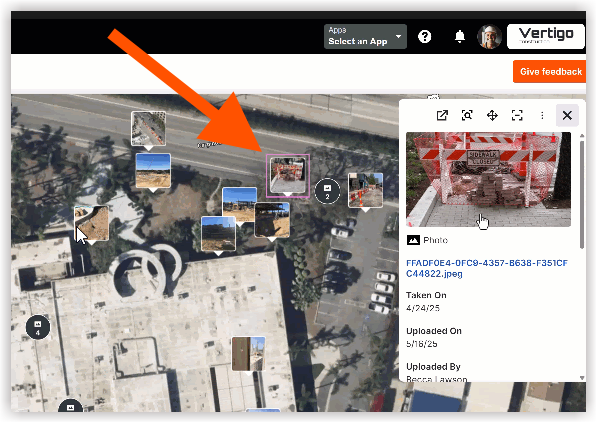
In the item summary, click the item title or the
 icon, to view the item's details in a new tab.
See Also
Loading related articles...