Manage Sent Messages for Resource Planning
Things to Consider
Messages sent in Resource Planning do NOT appear in Emails in Procore.
Messages that are only visible to you have a lock
 icon.
icon.Deleted messages are permanently removed from Resource Planning and cannot be recovered.
Prerequisites
Steps
Navigate to the company's Resource Planning tool.
Click the Communications (Beta) tab.
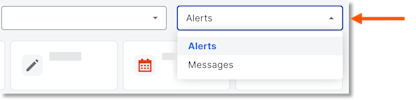
Click Messages from the drop-down menu.
Click Sent.
In the 'Date/Time Sent' column, select the envelope
 icon for the message to view the details.
See Also
Loading related articles...