Edit a Timecard Entry in the Company Level Timesheets Tool
Things to Consider
When you edit a signed timesheet, the employee must sign it again.
Zero hour entries are supported to enter time off and per diem.
To edit an 'Approved' timecard entry, first change its status to 'Pending' or 'Reviewed'.
Timecard entries can only be marked as 'Completed' in the Company level Timesheets tool.
After a timecard entry has been marked as completed, edits are no longer permitted.
Steps
Edit a Single Timecard Entry
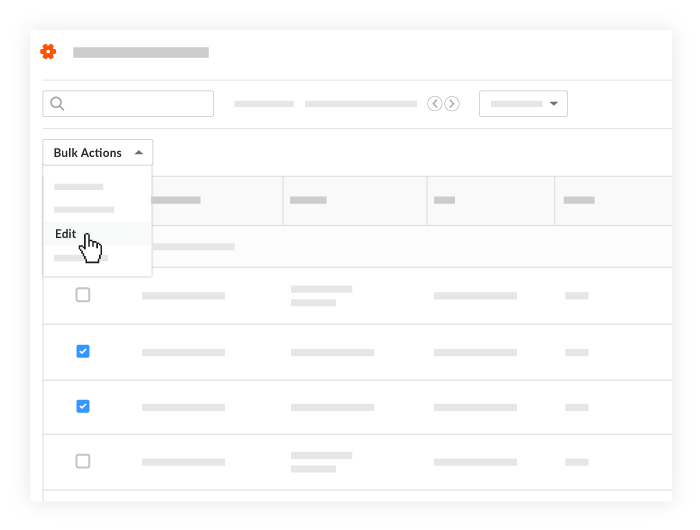
Bulk Edit Timecard Entries
Edit a Single Timecard Entry
Navigate to the company's Timesheets tool.
Locate the timecard entry to edit.
Cost Code: The budget code associated with the time entry.
Sub Job: Select from the drop-down menu the sub job associated with the time entry.
Location: The location where the work was performed.
Time
Total Time: The total time worked for the day.
Start Time: The time the resource started working.
Stop Time: The time the resource stopped working.
Note: You will only see the Start and Stop fields if you have configured your settings to show these fields. See Configure Advanced Settings: Project Level Timesheets.Lunch Time: The amount of time taken for a lunch break.
Notes:The amount of time selected will be subtracted from the Total Time.
This field will only be available if Start Time and Stop Time is enabled.
Time Type: Select the type of pay being entered.
Regular Time
Double Time
Exempt
Holiday
Overtime
PTO
Salary
Vacation
Billable: Select to indicate whether or not the entry is billable.
Time Type Rules. Mark the checkbox to automatically enforce overtime rules.
Description: Additional comments that will show in the timecard entry.