Add Worker and Employee Entries on a T&M Ticket
Background
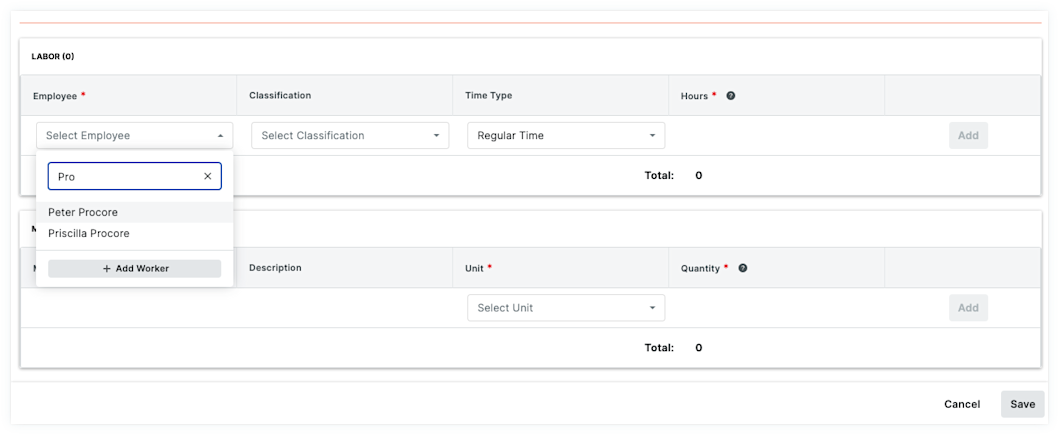
Use the 'Labor' section of a T&M ticket to log who is performing the work. If a worker is missing from the 'Employee' list, you can create a new worker (contact) or add one from a previous project. Workers are also accessible in the Crews and Timesheets tool, and are added as a contact in both the Project Directory and Company Directory.
Things to Consider
Workers must be unique.
Workers are added to the
Additional Information:
The T&M Tickets tool does NOT allow you to create duplicate workers.
The workers added will be displayed in the Employee List on the Crews, Timesheets, and T&M Tickets tools.
Once a worker (contact) has been added to the Crews tool in one project, that person's First Name, Last Name, Employee ID, and Classification will auto-complete when a user begins to enter that name in crews or inside a T&M Tickets.
Contact records are added to the Project and Company level Directory tools in the 'Contacts' tab.
Contact records can be edited in the Project level Crews tool and in the Project and Company level Directory tools. See Edit a Worker, Edit a Contact in the Project Directory, and Edit a Contact in the Company Directory.
Steps
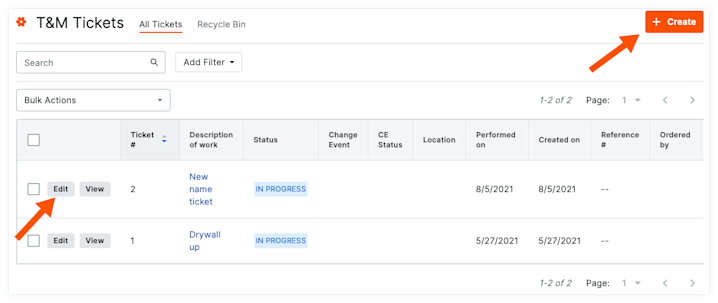
Navigate to the project's T&M Tickets tool.
Locate the ticket that you want to work with.
Click the +Create button to create a new ticket or the Edit button to edit an existing ticket.
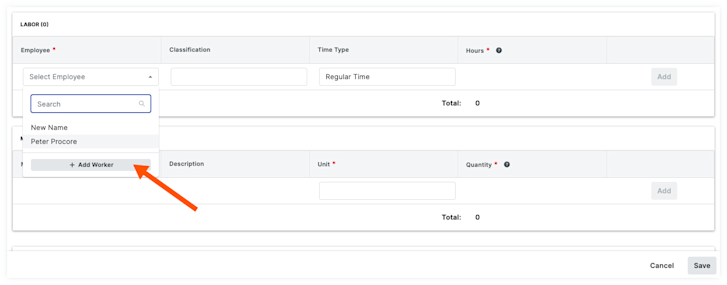
In the 'Labor' section, click the Employee drop-down list.
Scroll to the bottom of the drop-down list and click Add Worker.
Enter the following information:
Add a unique Employee ID for each worker (Recommended)
Enter a middle initial or name after the first name.
Enter the worker's full name.
*First Name: Enter or Edit the worker's first name. If you have previously added workers, a list of potentially matching names will appear. You can select the correct match or type a full name.
*Last Name: Enter or Edit the worker's last name. If you have previously added workers, a list of potentially matching names will appear. You can select the correct match or type a full name.
Optional: Employee ID. Edit the Employee ID for the worker in this list.
Optional: Classification: Edit the classification by selecting an option from the drop-down list. To learn which Procore tools interact with classifications, see Which Procore tools support 'Classifications'?
Note
If you have two (2) or more workers with identical names, the Crews tool will NOT allow you to create duplicate worker entries. Filling out Employee ID or Classifications fields helps to identify the individual workers.
Click Add. This adds a new worker to the project's Crews tool and also creates a contact record in the Project Directory tool.