Details
Key features include the ability to:
Configure ‘budget changes’ settings in the 'Budget settings' page of the project's Budget tool
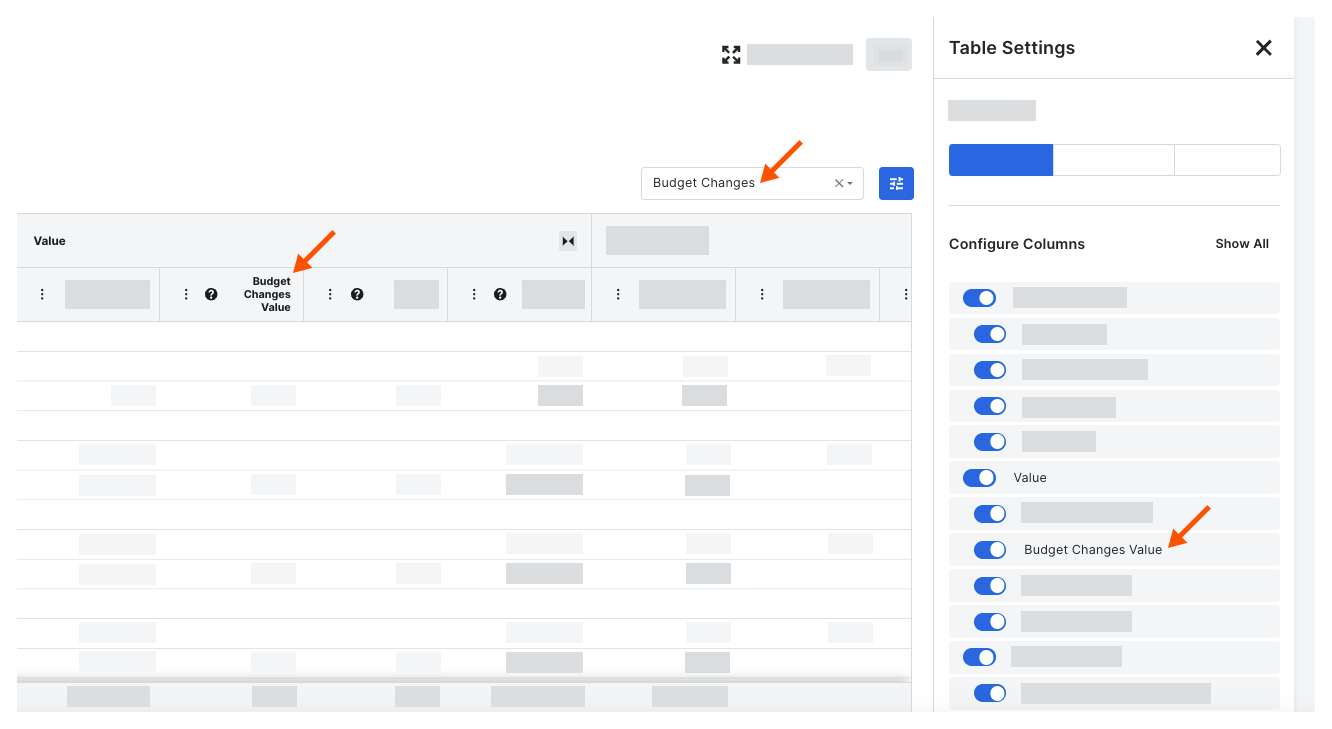
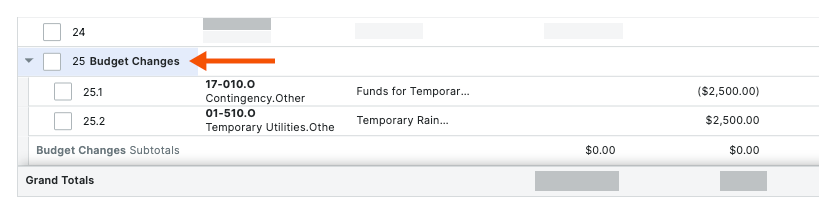
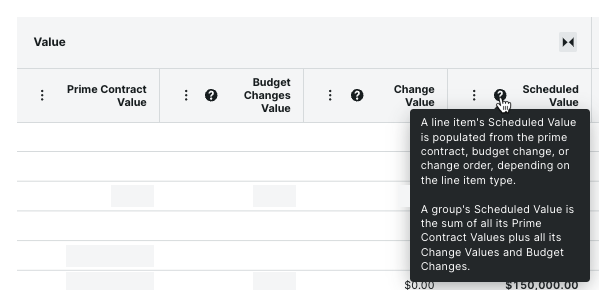
Add a new 'Budget change value' column and 'Budget change' group on the main contract payment application Bill of Quantities
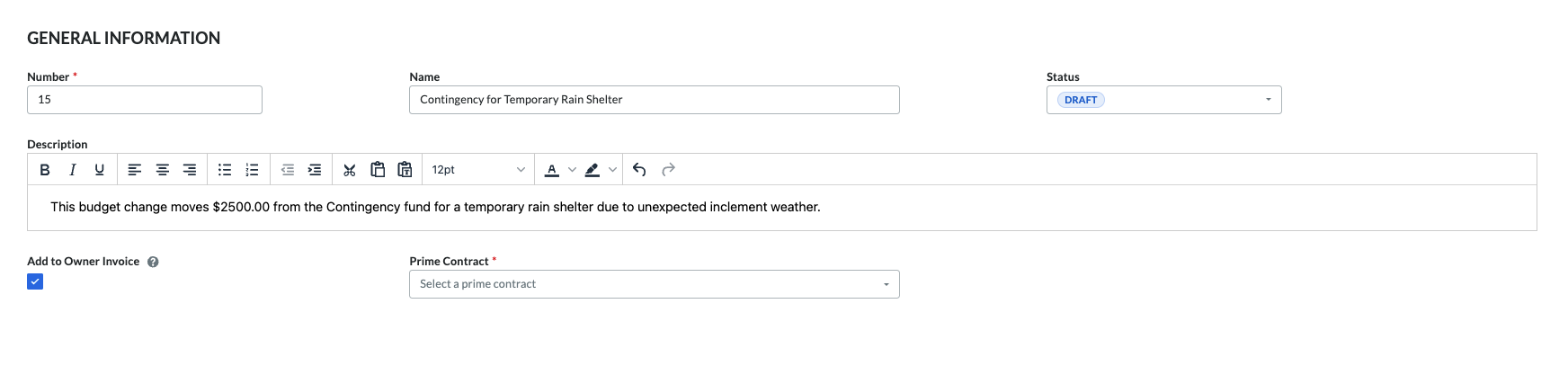
Create a new budget change and select the main contract so it can be added to the main contract payment application once the change is approved
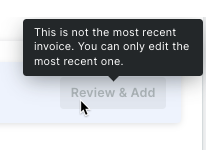
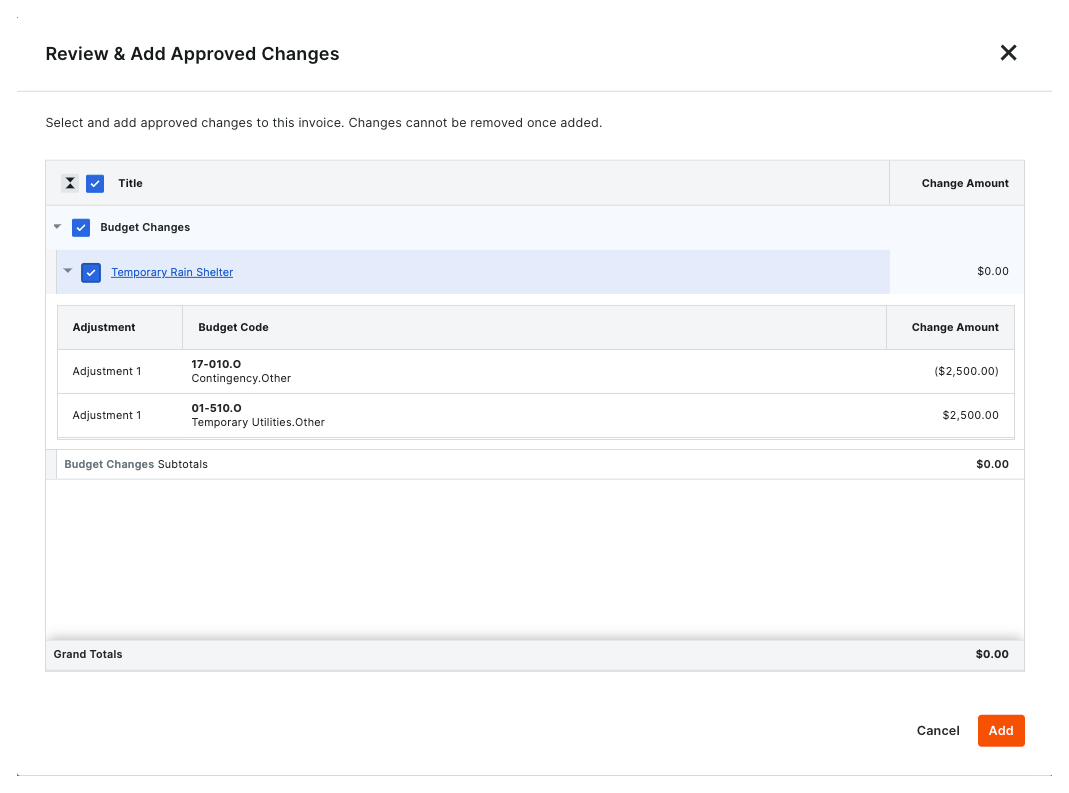
Respond to the notification banner on the most recent main contract payment application's Bill of Quantities by clicking Review & Add
Review the approved changes and select the changes to add to the most recent main contract payment application
View and edit the added changes on the most recent main contract payment application
Configure the 'budget change' setting in the 'Budget setting' page of the project's Budget tool
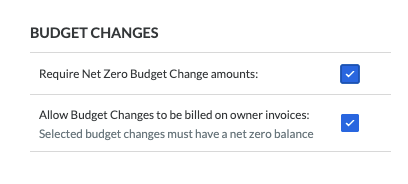
To add approved budget change to the most recent main contract payment application, an administrator must configure the 'budget change' setting in the 'Budget setting' page of the Project level Budget tool. See Configure setting: Budget:
Allow budget changes to be billed on main contract payment applications. Adds the 'Budget change value' column to the bill of quantities on main contract payment applications, adds the 'Add to main contract payment application' tickbox and 'Main contract' drop-down list to the 'Add budget changes' window and enables the budget change notification banner to appear at the top of the most recent main contract payment application's Bill of Quantities' after a change is approved. See Approve budget changes.
NoteOnce approved, only Net Zero budget changes are eligible for adding to main contract payment applications.
Below are the new 'budget change' configuration options in the 'Budget settings' page of the Budget tool.