Details
Key features include the ability to:
Configure ‘Budget rough order of magnitude’ options in the 'Configure settings' page of the project's change event tool
Add new source columns and create new calculated columns for use in a Procore budget view
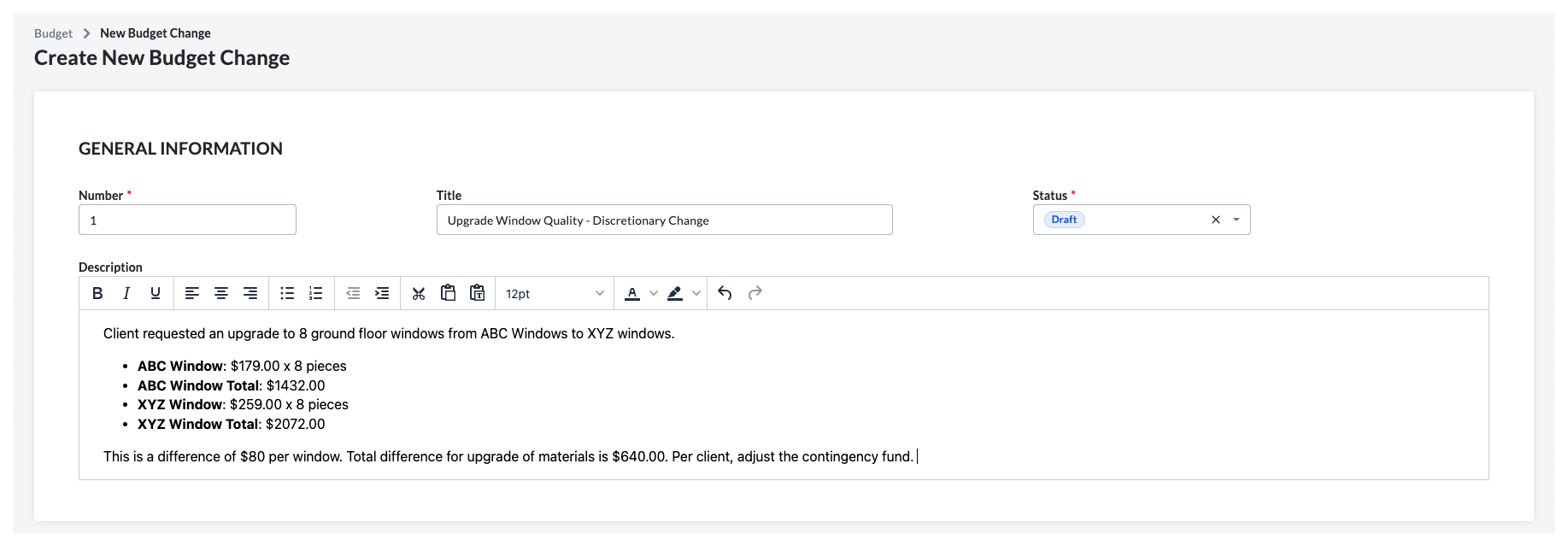
Create a new budget change that is automatically linked to a system-created change event from Procore's Budget tool
View budget change detail in the Budget tool
Create a budget change from a change event using the new 'Financial impact' card
Extra columns on the change events table in the line items tab for participants in the modernised change events beta programme
Configure change event auto-creation from budget change in the 'Configure settings' page of the Budget tool
Configure ‘Budget rough order of magnitude’ options in the 'Configure settings' page of the project's change event tool
Procore has a 'Budget ROM' section with three (3) drop-down lists for 'Budget ROM for In-Scope', 'Budget ROM for Out of Scope' and 'Budget ROM for TBD Scope.' These setting allow an administrator to define the business logic that Procore uses to automatically populate the 'rough order of magnitude' value in the 'Budget rough order of magnitude' column, which helps you gauge the impact of a given change on your project's Budget. For each available Budget rough order of magnitude scope, an administrator can choose from these options: Latest cost, Latest Price and None.
Below are the new 'Budget rough order of magnitude' configuration options in the 'Configure settings' page of the change event tool.
Add new source columns and create new calculated columns for use in a Procore budget view
Your company's Procore administrator has the option to add new source columns and to use those columns to create new calculated columns, so you can view your budget change adjustments' impact in your project's Budget tool. To learn how to add these new columns, see Add the columns for the budget change feature to a budget view.
Below is a look at how the columns appear when a budget view has been updated to include budget change columns and is assigned to the view in the project's Budget tool. To learn how to add these new columns, see Add the columns for the budget change feature to a Budget.