Key features
With the partial payments feature in the Company level Payments tool, main contractors don't have to pay the full amount due on a payment application when processing a disbursement. Instead, they can opt to make partial payments.
Update payment amounts on a subcontractor payment application in a disbursement
Add notes about update payment amounts on subcontractor payment applications
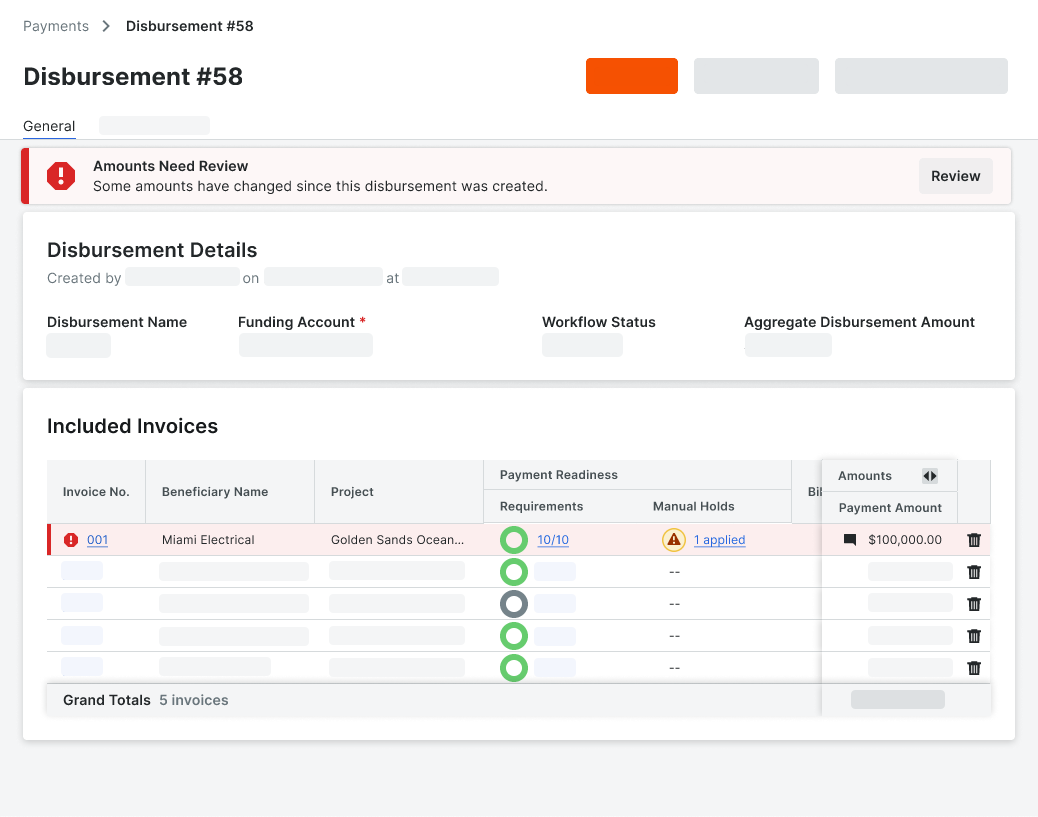
Flag partial payments when reviewing payment applications in Disbursements
Displays alerts to ensure payment application amounts get reviewed
Alert payment admin and disbursers to help prevent payment errors
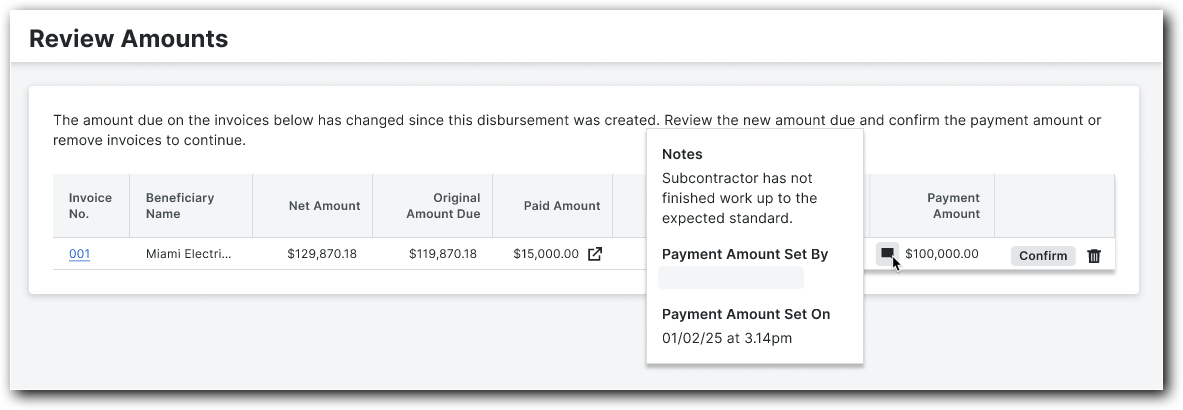
Require confirmation of updated payment amounts when authorising disbursements
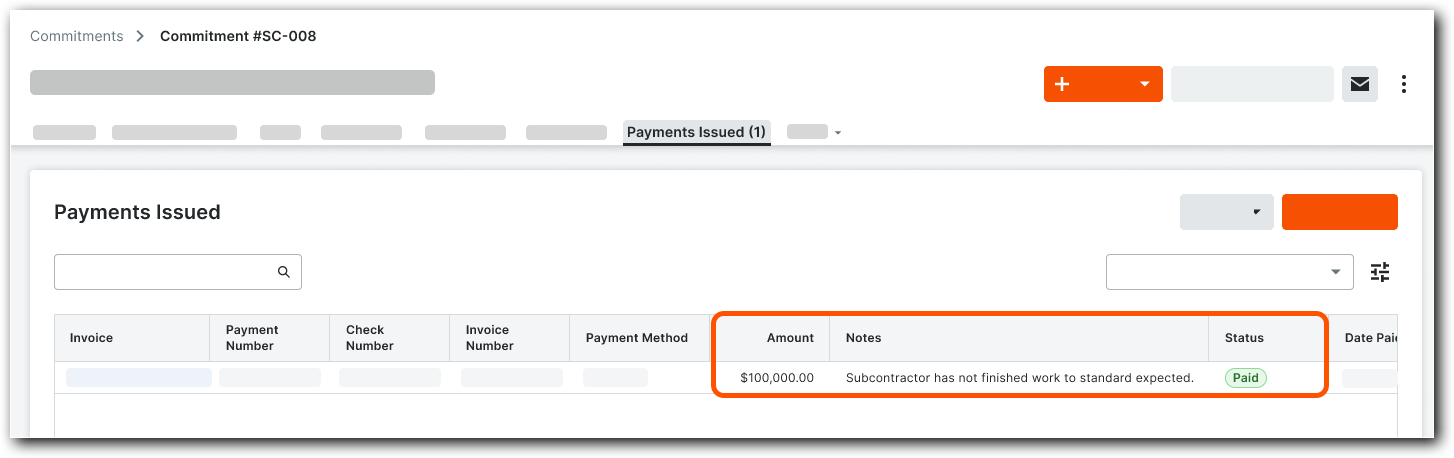
Record updated payment amounts in the commitment's payment issued tab
Update payment amounts on subcontractor payment applications in disbursements
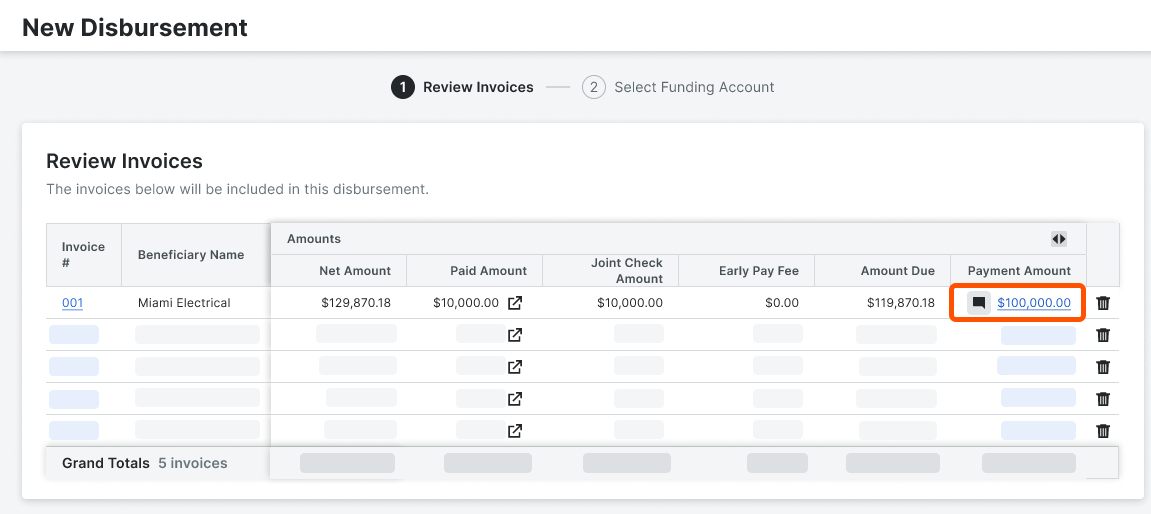
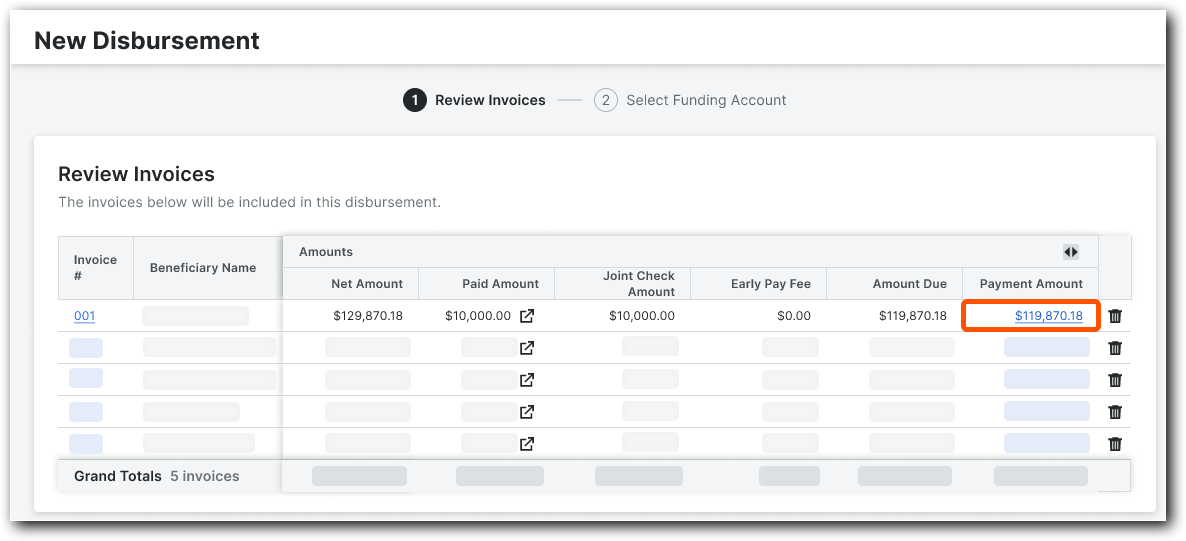
To update the payment amount for a payment application being added to a disbursement, payment admins and disbursers can click the Payment amount link for a payment application line item. This opens the Update payment amount window. For more details, see Create disbursements.
This shows the payment amount link for subcontractor payment applications on the new disbursement page.
Add notes about updated payment amounts on subcontractor payment applications
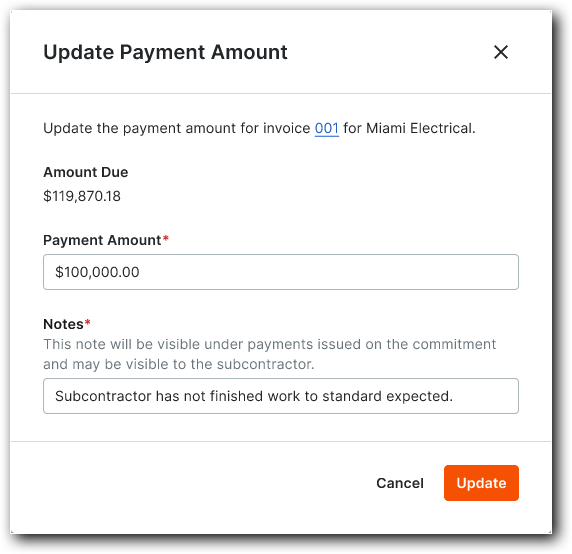
Payment admins or disbursers can update the Payment amount for the selected payment application. The entry must be less than or equal to the Amount due. Users can also enter notes to document the reason for the partial payment. This note is visible on the payment application in the Project commitments tool and to users who've been granted user access permissions to the project commitment. This typically includes your company's designated employees and the subcontractor's payment application contact. Once entered, click Update to save the adjustment to the payment application and disbursement.
This shows the Update payment amount window where users update the payment amount and add relevant notes about the partial payment.