Details
The compliance tab on a subcontractor payment application in Procore Pay includes several key features designed to streamline the management of compliance documents during the payment application process.These features collectively help ensure that all compliance-related requirements are efficiently managed, reducing the risk of payment delay due to missing or incomplete documentation.
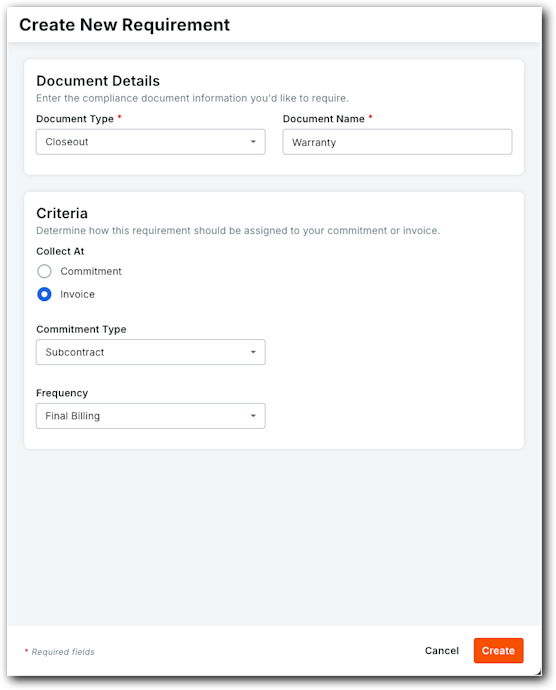
Collect required compliance documents during payment application submission
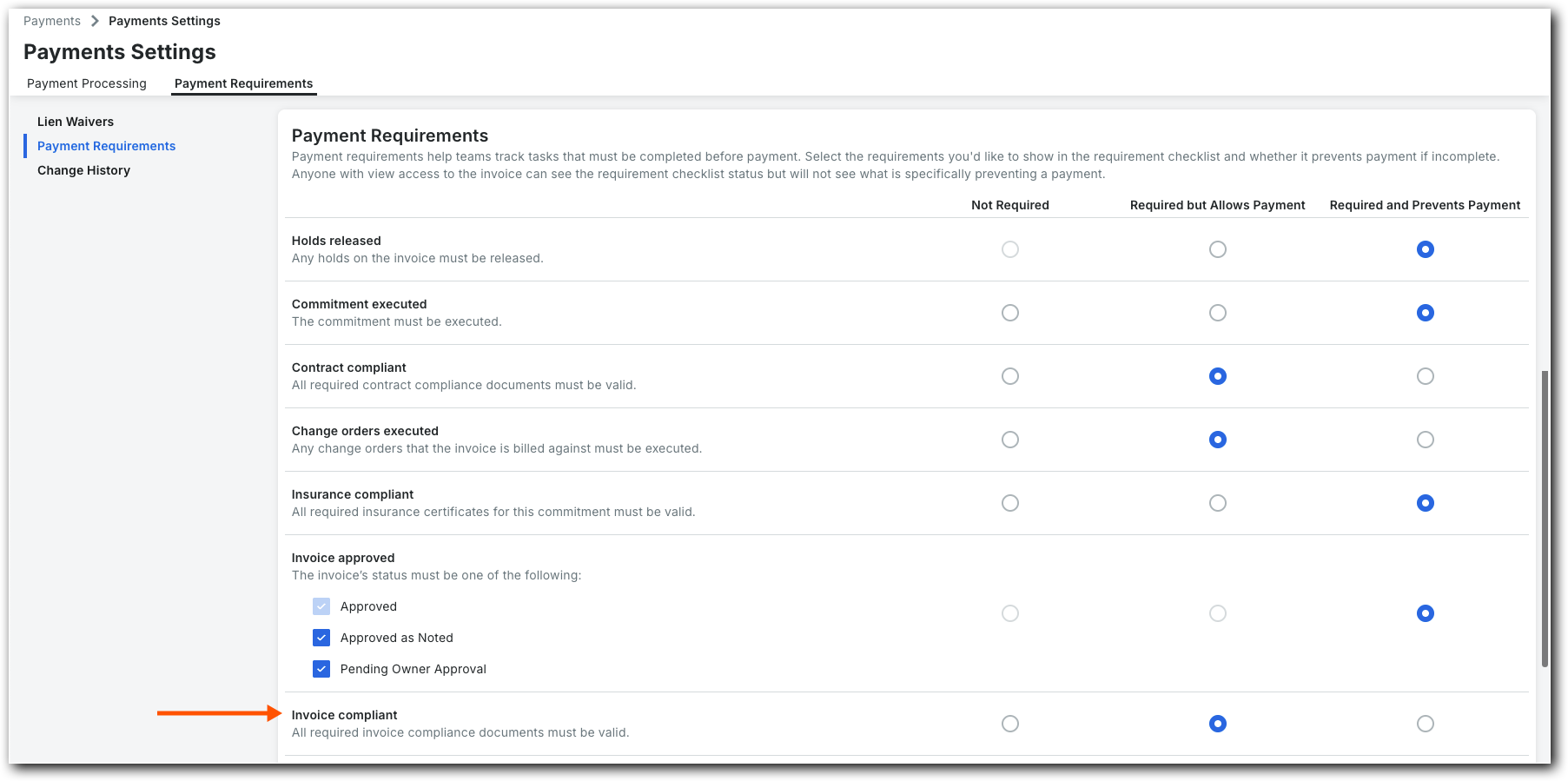
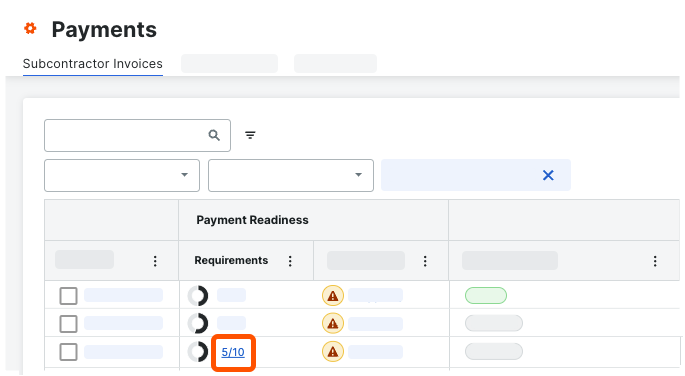
Payors can collect any required compliance documents from your payees during payment application submission. For example, collecting a W-9 is often contractually required for tax compliance and accurate record-keeping. Payment application administrators can perform these actions to ensure payment requirements are met and verified on project payment applications from the Commitment or Payment Applications tool. Payment admins and disbursers with payment application administrator permission can also verify the requirements before payment application approval and payment from the Payment tool. Payment application contacts may also be able to perform these actions with the payor's permission.
To learn more, see:
Add a compliance document to a subcontractor payment application
Upload a compliance document to a subcontractor payment application
Delete a compliance document from a subcontractor payment application
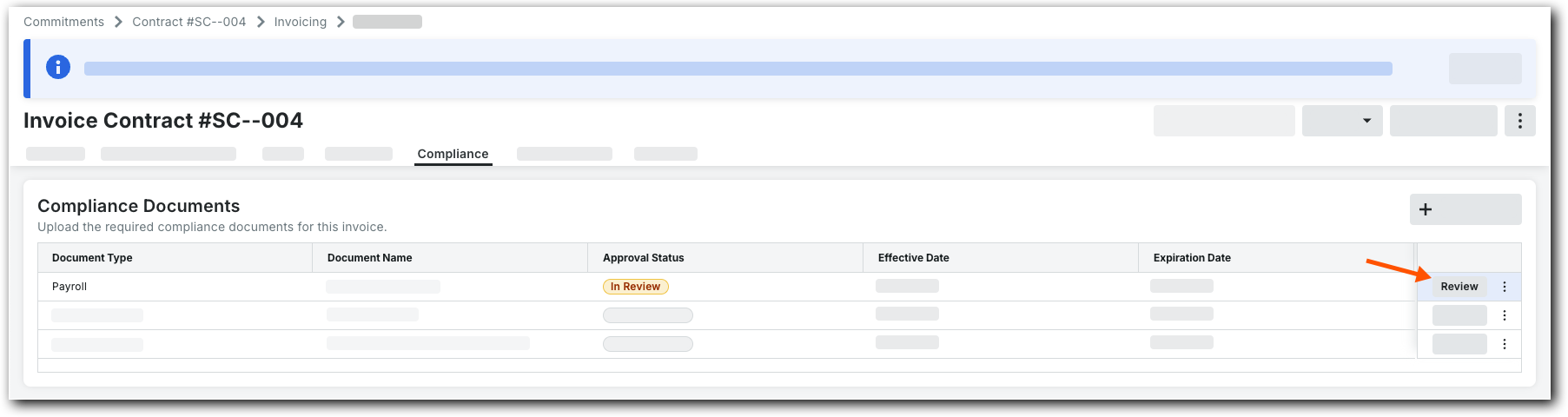
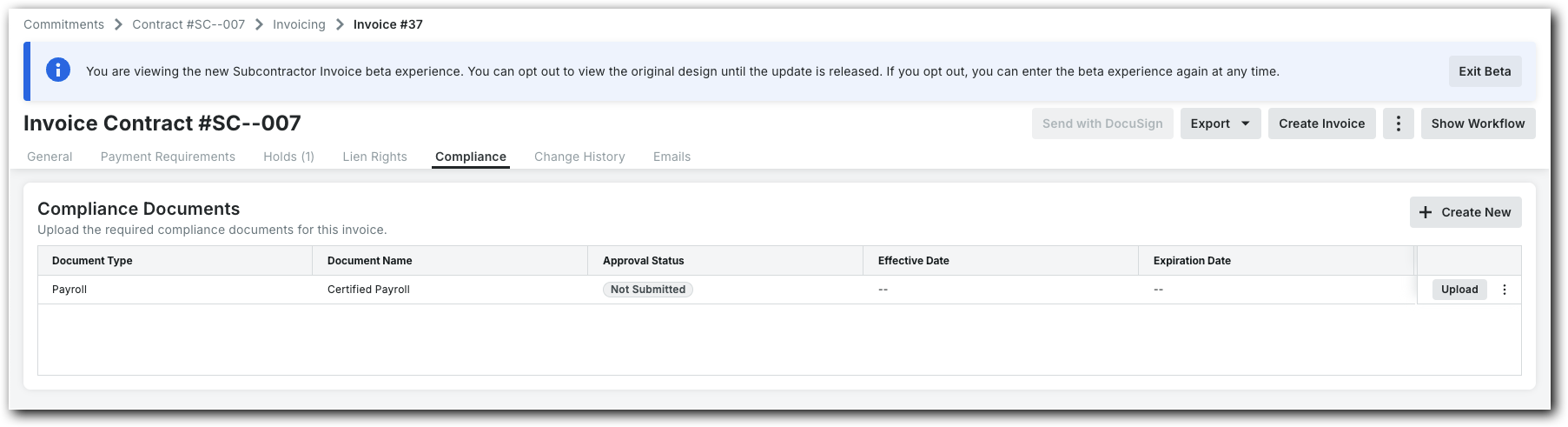
This shows you the compliance tab on a subcontractor payment application.
Review submitted compliance documents
Once the required compliance documents have been submitted, users with payment application administrator permissions on a project can manually add or remove compliance documents as needed. Note that any manual changes do not carry over to future payment applications.
This shows you the Review button on the compliance documents tab of a subcontractor payment application.