Add a Condition Step
Configure a 'Condition step' in the Workflow Builder by naming it, defining conditions with tool-specific statements and setting the next workflow steps based on whether conditions are met.
Steps
Add a Condition Step
Navigate to the Workflow Builder. Use these steps when configuring a workflow step in a new or existing workflow.
Under General information in the Type list, choose: Condition step
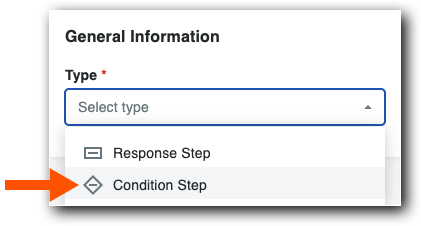

Add general information
Name your workflow in Step name.
Confirm that Condition Step is set in the Type list.
From the When list, select a tool-specific statement.
TipMissing a field? Custom Field types Single and Multi Select need to be set to Required and Visible in the Custom Fieldset to be used in a Condition.
Choose an available operator from the Is box. Each condition statement has different options. To learn more, see Tool-specific statements and conditions.

In the Then list, choose the next step or create a new step for the workflow template.
In the Otherwise list, choose the next step or create a new step for the workflow template.
The workflow step always goes to the Otherwise step you define when a condition is not met or if the item is empty.