start a workflow
If you have enabled the self-service Workflows engine in the Workflows tool configure settings, you are now ready to use your workflows on Project level items. After creating and configuring a template on a project, the next step is to create an item that needs a workflow for approval. Workflows on subcontractor payment applications start automatically, but workflows on contracts and other items need to be started manually. The instructions below will show you how to start a workflow.
Background
After creating a new Commitment, Prime Contract or Budget Change on a project, the next step is to start the workflow so assignees can respond.
Things to Consider
Required User Permissions:
Do one of the following:
'Admin' level permissions on the company's Directory tool.
Users with the 'Can Start Workflows' granular permission enabled on their permissions template. See Grant Granular Permissions in a Project Permissions Template.
Users with the 'Can be Workflow Manager' granular permission enabled on their permissions template. See Grant Granular Permissions in a Project Permissions Template.
Steps
Navigate to the tool and item containing the workflow.
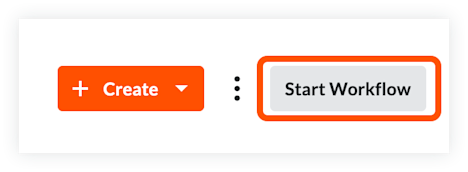
Click Start Workflow at the top right corner of the item.