Add a permitted project to a data connection application
Background
Procore administrators can manage the list of permitted projects for a data connection application. The application is only allowed to run in permitted projects using the permissions defined in the DMSA.
Things to Consider
Required User Permissions:
'Admin' on the Company Admin tool.
Steps
Log in to Procore and navigate to the Company Admin tool.
In right side panel, select Application management under company settings.
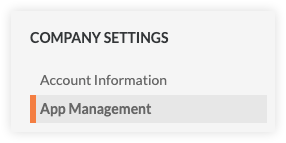
On the application management page, locate the data connection application you want to add permitted projects to and click View.

Click the permissions tab.
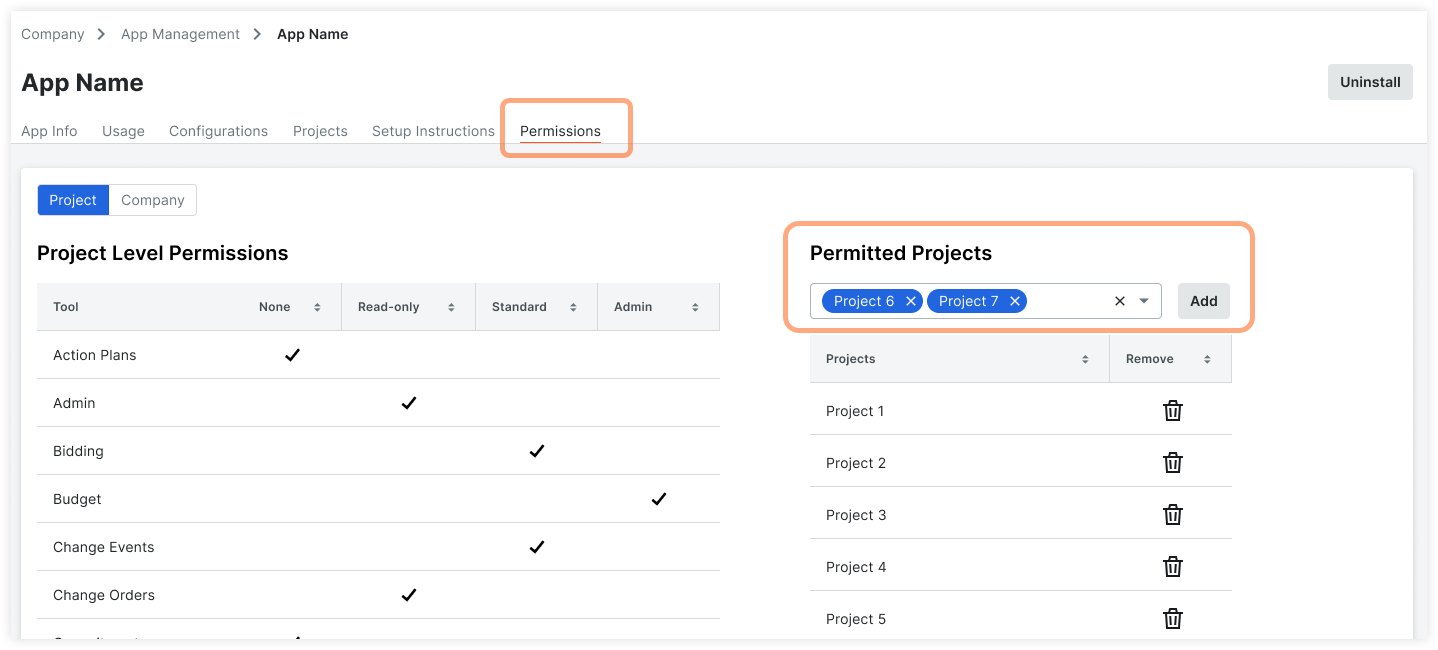
Select one or more projects in the permitted projects drop-down and click Add.


Add all new projects as permitted projects
You can configure the company Directory setting for the DMSA account so that all new projects created in the company will be added as permitted projects.
Once the integration is installed, go to the Company level Permissions tool.
Click the Projects permission template tab.
Create a Global permission template that provides the permission the application lists as required. See Create permission template for detailed instructions. Note: It's best to name the permission template with the application's name to easily identify it.
Go to the Company level Directory.
Search for the application name to locate its "user" account in the Directory.
Click Edit next to the user account.

In the permission area of the user record, click the Select default permission template option.
Choose the template you've set up for the application, then click Apply.
Next, mark the tickbox for Add [app-user-name] to all new projects. This setting will add the ‘application user’ to all new Procore projects moving forward.
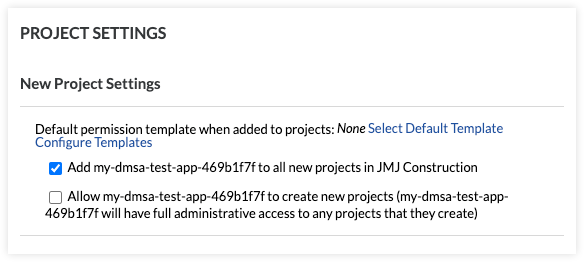
To add the ‘application user’ to existing projects, click Add all next to Projects this user does not belong to.
Click Save at the bottom fo the page.


Add existing current projects as permitted projects
You can configure the company Directory settings for the DMSA account so that one or more existing current projects in the company will be added as permitted projects.
Go to the Company level permissions tool.
Click the Projects permission template tab.
Create a Global permission template that provides the permission the application lists as required. See Create permission template for detailed instructions.
Note: It's best to name the permission template with the application's name to easily identify it.Navigate to the Company Directory tool.
Locate the Directory user associated with the DMSA application, then click Edit.
In the permission area of the user record, click the Select default permission template option.
Choose the template you've set up for the application, then click Apply.
Next, mark the tickbox for Add [app-user-name] to all new projects. This setting will add the ‘application user’ to all new Procore projects moving forward.
Scroll down to the Current project settings section and click Add all to add all existing current projects as permitted projects or click Add for one or more individual projects as needed.
Click Save at the bottom of the page.
See Also
Loading related articles...