Configure your company settings

 Limited release

Procore is adding a new 'Company information' tab where certain companies can manage their company logo and office settings. If you do not see the 'Upload company logo' or 'Office settings' options in the 'General settings' tab, see Manage company information instead.
Background

The admin tool lets you define a variety of general settings and preferences for your company's Procore account.

Things to Consider

  • Required User Permissions:

    • 'Admin' level permissions on the Company level Admin tool.

Steps

  1. Navigate to the Company level Admin tool.

  2. Under 'Company settings', click General settings.

  3. Follow the steps detailed below to update:

    • ​General settings

    • Office settings

    • Terms & conditions

    • Email notification settings

    • Overdue emails sent during the weekend

    • Insurance emails

General settings

  • Opt in to monthly sandbox. Mark this tickbox to enable access to a monthly sandbox environment for your company. A monthly sandbox environment is a copy of your company's Procore production account that is used for testing purposes. See What is the monthly sandbox environment? for details.

  • Home preferences. For accounts with the Account Onboarding tool, there is the option to configure the page users will land on when accessing your company's Procore account or clicking 'Home'. For accounts with access to the Account Onboarding tool, this tickbox is marked by default and the Account Onboarding tool is the default home page. Clear the tickbox to make the Portfolio tool your company's default home page.

Office settings

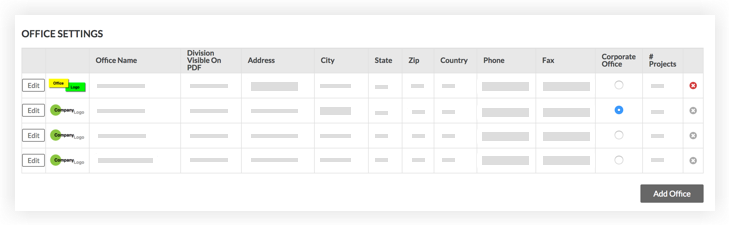
Office settings. Use the controls in this area to add and edit your organisation's settings for its office locations. To add a new office location to your organisation's list, click Add office (for details, see Add an office location). To edit an existing office location, click Edit and then update the record as needed. To delete an office, click the RED 'x' in the far right column (Note: An office location can only be deleted when there are no Procore projects associated with it).

Dir Office Settings

Terms & conditions

Terms Conditions

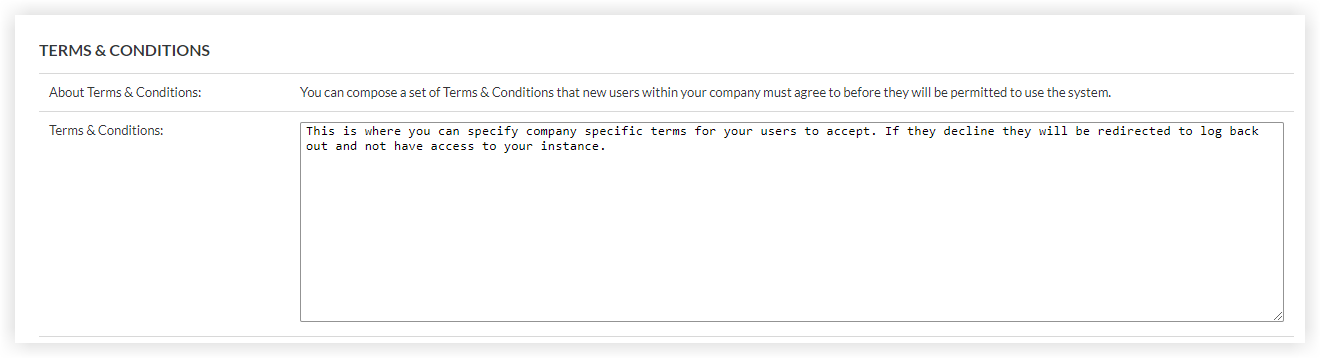
Under Terms & conditions, you can add company-specific legal language to specify the usage agreement for your company's implementation of the Procore system.

  • To add your terms and conditions to Procore, enter the desired text in the box.

  • To prompt new user to agree to the "Terms & conditions" when logging in to Procore for the first time, place a tick in the Enable terms & conditions box. The first time a user logs in to Procore, they must agree to the specified term and conditions. If they decline to accept the conditions, the user is prompted to click a link to exit the system.

  • If you update your terms & conditions and want your users to accept your updated terms and conditions, mark the Trigger re-acceptance of terms & conditions for all users tickbox. This tickbox is cleared by default.

     Tip

    Need help defining your terms & conditions? For help writing your company's terms and conditions, Procore recommends contacting an attorney who understands your specific business and concerns. You can also visit the Procore Community web site to ask other Procore customers how they have addressed their company's terms & conditions.

Email notification settings

Overdue emails sent during the weekend

Procore administrators can help reduce email interruptions during non-working days by disabling overdue email notifications during weekends for the entire account. See Can I prevent email from being sent on the weekend? The time zone set in your company's Procore account determines the days and time for weekends. See general settings above.

To enable this setting, mark the tickbox next to 'Disable overdue email during the weekend'.

Admin Email Notifications

Insurance emails

In Procore, the term insurance manager refers to an internal employee (or multiple employees) at your company who serve as your organisation’s primary point of contact(s) for ensuring that the insurance policies for your contractors, subcontractors and other vendors are in compliance with requirements and that their required policies and certificates are kept up to date.

Under About insurance emails, the system reveals a list of users who will receive email notifications from Procore.

Insurance Emails

The system will send email when the insurance is within two (2) weeks of its expiration date. In addition, the system will continue to send a daily email reminder for up to sixty (60) days after the expiration date (or until the insurance expiration date on is update).Note: This is a default email notification and cannot be customised at this time.

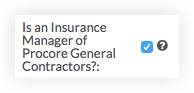
  • To add user to the list, navigate to the Directory tool. Next, click the Edit option next to the user. Mark the tickbox next to Is an insurance manager of [company name]?Is An Insurance Manager

  • To remove users from the list, clear the check mark from the box in the Directory tool.

Note: To learn how to add and update insurance for one of your company's vendors (such as contractors, subcontractors and other vendors), see Add insurance for a vendor in the company Directory and Update expiring insurance for a vendor in the company Directory.

SFTP connection error emails

If your Procore account is configured to import data via Simple File Transfer Protocol (SFT), select a user from the Send to drop-down list. The system will send a notification to this person in the event of a connection issue.

Sftp Connection Error Email

See Also

Loading related articles...