View account information
Background
This page will assist in clarifying critical account information including the following:
Important contacts at your company
Available tools
Things to Consider
Required User Permissions:
'Admin' level permissions on the Company level Admin tool.
Steps
Navigate to the Company level Admin tool to view the 'Account information' page.
The Account information page contains two area: 'Details' and 'Tools'.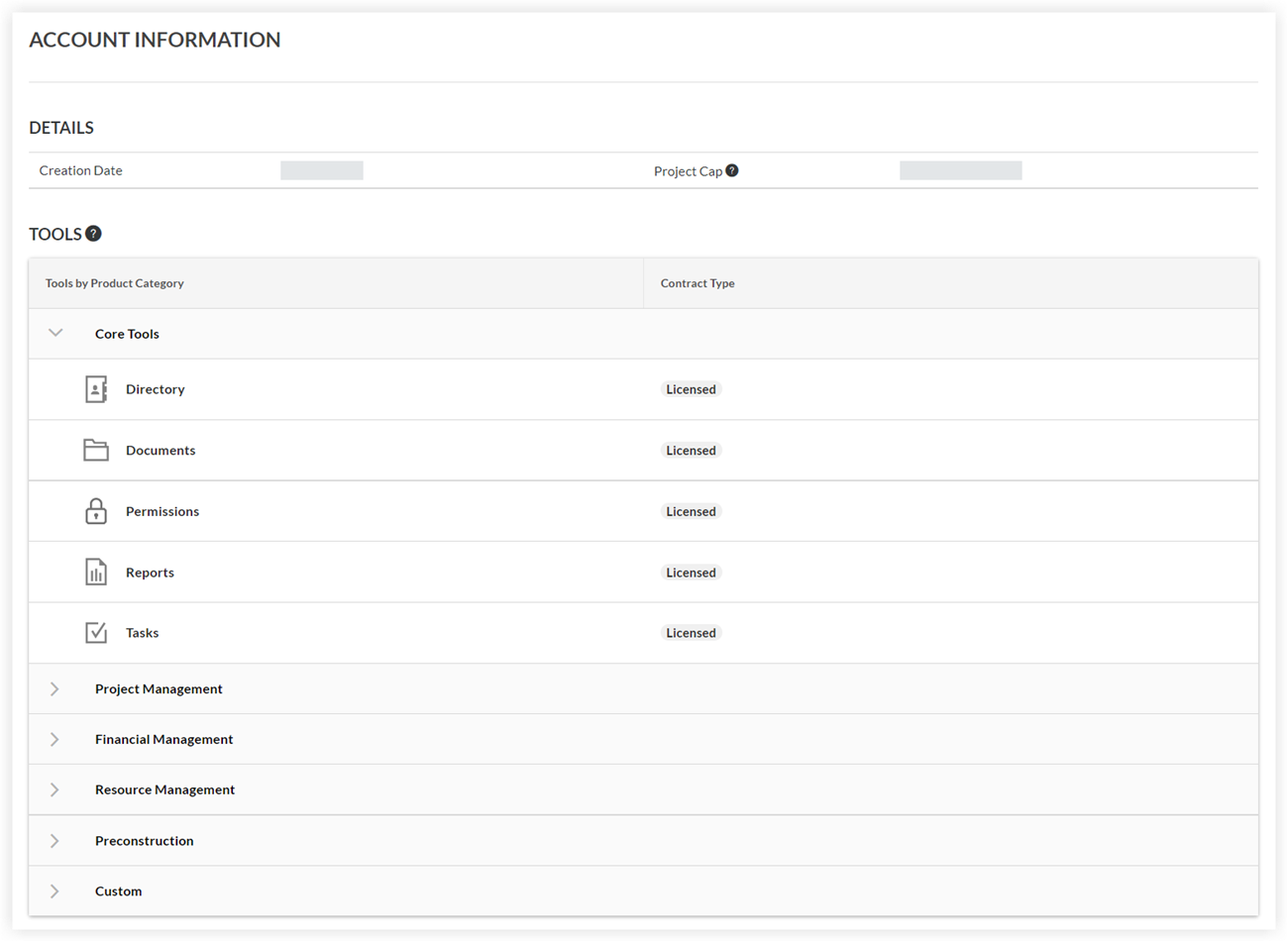
Under 'Details', you can view the following information:
Creation date: The date on which your company's Procore account was created. This date cannot be modified.
Project cap: The maximum number of projects allowed. Procore allows accounts to have unlimited projects.
Enterprise resource planning integration: The name of the supported enterprise resource planning integration purchased per your contract (e.g., integration by Procore: viewpoint Spectrum®, integration by Procore: Vista®, QuickBooks®, Sage 100 Contractor®, Sage 300 CRE®, estimated cost to complete.).
Note: This field will not display if you did not purchase an enterprise resource planning integration or if the enterprise resource planning integration has been disabled.ERP Contact: The email address of the Procore employee assigned to assist you with your ERP integration.
Notes:This individual does NOT exist in your company Directory, but you will be able to send an email to this individual if you have purchased an ERP integration.
This field will NOT appear if the Company level ERP Integrations tool is disabled or if your company did NOT purchase an integration.
Executive sponsor: The name of the employee at your company who has a vested interest in the success of Procore at your company. Typically, this employee is a senior member of your project team or financial contact.
Note: To change your executive sponsor, contact your Procore point of contact.Account administrator: The main contact for setting up and managing your account at a high level. This field may not display for every company.
Under 'Tools', you can view an alphabetical list of Procore tools, organised by product category. The contract type is also listed next to each tool.
Notes:If your company's account has licence the project's Correspondence tool, the Correspondence tool will display in the 'custom' product category.
The Account Tools area does NOT list custom tools or foundational tools that are provided with every account.
If your company's account is NOT licence or participating in a trial, the product group will NOT display in this list.
If your company has deactivated a Procore tool at the Company level, the tool will NOT display in this list.
If your company is using a trial account, the 'Contract type' column is hidden. Only to tools included in your trial appear.
If your company account is an active account, the 'Contract type' column indicates whether a tool is 'licence' or a 'trial'.
If you want to modify the licence, your company's Procore administrator can contact your company's Procore point of contact with an inquiry. Licence and contract changes may affect the contract price.
See Also
Loading related articles...