Set a Tender Board project as a template
Things to Consider
Required user permissions for the Tender Board tool.
Required user permissions for the Portfolio Planning tool.
See a list of what information gets copied to a new project from a Tender Board template.
Tender board templates
Steps
Set a project as a template
Navigate to the Tender Board or Portfolio Planning tool.
Locate the project you want to set as a template.
Click the project name to open it.
Note: You can set the project as a template from any of the sections on this page.Click the vertical ellipsis
 at the top of the page.
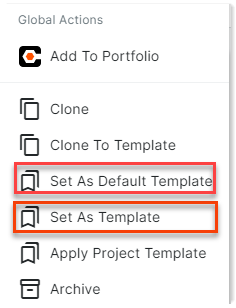
Select Set as template or Set as default template.
Unset a project as a template
Navigate to the Tender Board tool in Procore.
Locate the project you want to remove as a template.
Click the project name to open it.
Click the vertical ellipsis
icon at the top of the page.Select Unset as default template or Unset as template.
See Also
Loading related articles...